REDBOT COMPLETE FUNCTIONAL PARAMETERS GUIDE
Welcome to the RedBot control center. To ensure RedBot operates safely and generates sustainable profits, below is a detailed breakdown of the functions and default settings optimized by our team of experts.

Important Information
RedBot works on all account types and all assets permitted by the Broker.
All instructions and default parameters below are engineered specifically for Cent accounts (USC) with a recommended capital range of $40,000 USC to $400,000 USC (Equivalent to $400 USD to $4,000 USD in real equity) – Representing a strictly controlled risk exposure of 1% to 10% – Trading asset: XAUUSD (Gold). Cent accounts operate on a 1:100 conversion rate; depositing $100 USD will be converted into $10,000 USC.
(0) Enter License key: This is where you enter your License Key to use RedBot. You can view the guide on how to purchase a key via this link. Note: DEMO accounts do not require a key.
1. Account Management
Below is the Account Management settings interface in RedBot (Figure 1)
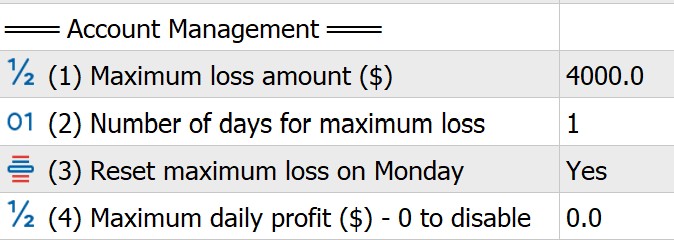
Core capital management to protect your account.
(1) Maximum loss amount ($): The total maximum loss allowed per day. The default parameter is $4,000. If extreme market volatility causes the account to reach this loss level within a day, RedBot will immediately freeze and stop trading to protect the remaining capital.
(2) Number of days for maximum loss: The default is 1. This item works in conjunction with item (1). This means a maximum loss of $4,000 is allowed per day; if set to 3, it allows a maximum loss of $4,000 over 3 consecutive days.
(3) Reset maximum loss on Monday: The default is YES. This means that regardless of the value set in item (2), the loss level resets to 0 on Monday, allowing RedBot to trade as normal.
(4) Maximum Daily Profit ($) - 0 is disable: The total maximum profit allowed per day. The default is 0 (disable).
2. Trend Settings
Below is the Trend Settings interface in RedBot (Figure 2)
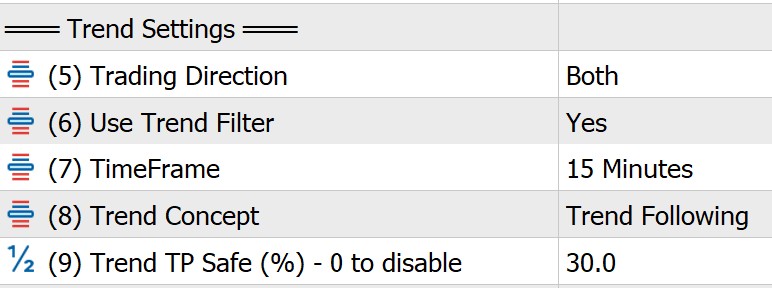
“Trend is friend”; entering trades in the direction of the market trend usually yields higher profits. Therefore, RedBot includes a trend-following function for traders to customize.
(5) Trading Direction: Select the trading direction. The default is Both.
(6) Use Trend Filter: The default is YES. This is RedBot’s automated trend identification system, capable of quickly detecting market trends to help increase profits for traders.
(7) Time Frames: This is the timeframe RedBot uses to pull data for calculations and trend identification. The default is 5 Minutes (M5).
(8) Trend Concept: Selects the trading philosophy based on the identified market trend. Trend Following: RedBot trades in the direction of the trend, Trend Reversal: RedBot trades market turning points. The default is Trend Following.
(9) Trend TP Safe (%) - 0 to disable: The default is 30.
3. Entry Settings
Below is the Entry Settings interface in RedBot (Figure 3)
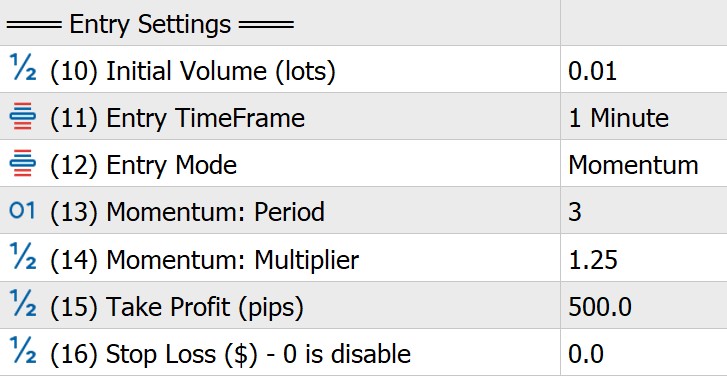
Conditions for finding an Entry.
(10) Initial Volume (lots): The volume for the initial Entry. Measured in Lots. The default is 0.01.
(11) Entry TimeFrame: The timeframe the Bot uses to pull data for entry point calculations. The default is 1 Minute (M1).
(12) Entry Mode: This item works in conjunction with item (11). The default is Momentum. RedBot will scan Momentum to calculate and find an entry point.
(13) Momentum: Period (candles): This item works in conjunction with item (12). The default is 3, meaning RedBot will scan data across the 3 most recent M1 candles for calculations.
(14) Momentum: Multiplier: This item works in conjunction with item (13). The momentum coefficient used to verify an Entry - the higher the coefficient, the harder it is to get an Entry. The default is 1.25.
(15) Take Profit (pips): The profit-taking point. Measured in pips. The default is 500.
(16) Stop Loss ($) - 0 is disable: The stop-loss point. Measured in $. If SL is set to 0 at Entry, the system will cut losses when the SL value is reached in one of the following: (28) SL DCA Positive, (40) DCA Negative, or (1) Maximum loss amount.
4. DCA Positive Settings
Below is the DCA Positive Settings interface in RedBot (Figure 4)
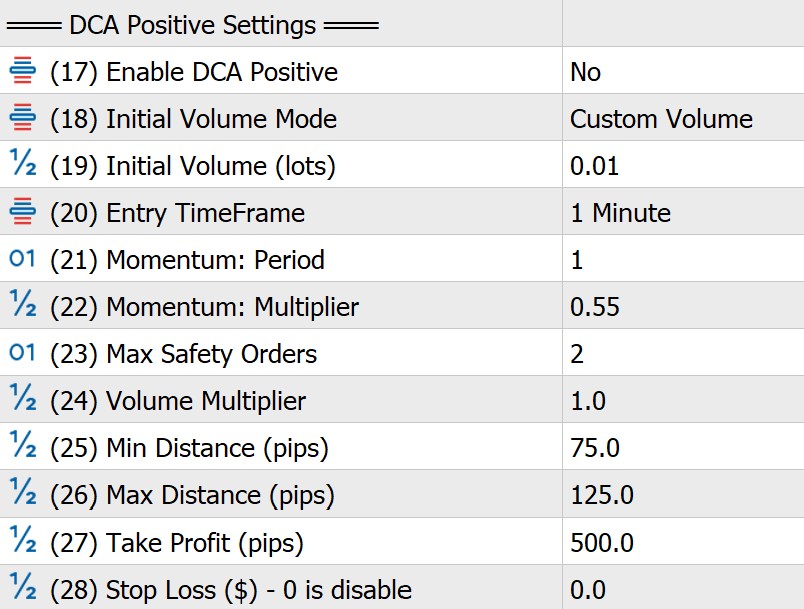
DCA Positive means adding more orders when the initial Entry is already profitable.
(17) Enable DCA Positive: The default is NO - Disabled.
(18) Initial Volume Mode: Volume input mode.
(19) Initial Volume (lots): Volume for the DCA Positive Entry. Measured in Lots.
(20) Entry TimeFrame: The timeframe the Bot uses to pull data for momentum-based entry calculations.
(21) Momentum: Period: This item works in conjunction with item (20). If set to 1, RedBot will scan data on the 1 most recent M1 candle for calculations.
(22) Momentum: Multiplier: This item works in conjunction with item (21). The momentum coefficient used to verify the DCA Positive entry point - the higher the coefficient, the harder it is to enter a trade.
(23) Max Safety Orders: The maximum number of DCA Positive orders allowed.
(24) Volume Multiplier: The volume multiplier for DCA Positive orders. If set to 1, meaning DCA order volumes do not change.
(25) Min Distance (pips): The minimum distance allowed to enter a DCA Positive order. Measured in pips.
(26) Max Distance (pips): The maximum distance allowed to enter a DCA Positive order. Measured in pips.
(27) Take Profit (pips): This is the profit-taking point calculated based on the average price of the DCA Positive and Entry orders. Measured in pips.
(28) Stop Loss ($) - 0 is disable: The stop-loss point. Measured in $. If SL is set to 0 at DCA Positive, the system will cut losses when the SL value is reached in one of the following: (40) DCA Negative or (1) Maximum loss amount.
5. DCA Negative Settings
Below is the DCA Negative Settings interface in RedBot (Figure 5)
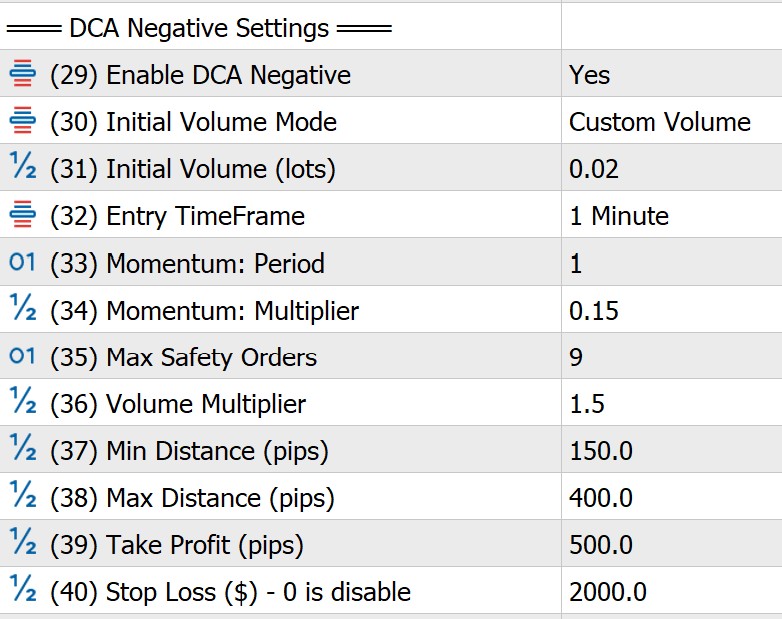
DCA Negative means DCA-ing when previous orders are currently at a loss.
(29) Enable DCA Negative: The default is YES - Enabled.
(30) Initial Volume Mode: Volume input mode. The default is Custom Volume.
(31) Initial Volume (lots): Volume for the DCA Negative Entry. Measured in Lots. The default is 0.02.
(32) Entry TimeFrame: The timeframe the Bot uses to pull data for momentum-based entry calculations. The default is M1 (1 minute).
(33) Momentum: Period: This item works in conjunction with item (32). The default is 1. If set to 1, RedBot will scan data on the 1 most recent M1 candle for calculations.
(34) Momentum: Multiplier: This item works in conjunction with item (33). The momentum coefficient used to verify the DCA Negative entry point - the higher the coefficient, the harder it is to enter a trade. The default is 0.15.
(35) Max Safety Orders: The maximum number of DCA Negative orders allowed. The default is 9.
(36) Volume Multiplier: The volume multiplier for DCA Negative orders. The default is 1.5. This parameter is very important and must be carefully backtested to find the appropriate setting for each strategy and asset type.
(37) Min Distance (pips): The minimum distance allowed to enter a DCA Negative order. Measured in pips. The default is 150.
(38) Max Distance (pips): The maximum distance allowed to enter a DCA Negative order. Measured in pips. The default is 400.
(39) Take Profit (pips): This is the profit-taking point calculated based on the average price of the DCA Negative and Entry orders. Measured in pips. The default is 500.
(40) Stop Loss ($) - 0 is disable: The DCA Negative stop-loss point. Measured in $. If SL is set to 0 at DCA Negative, the system will cut losses when the (1) Maximum loss amount is reached. The default is 2000.
6. Dynamic DCA Negative
Below is the Dynamic DCA Negative interface in RedBot (Figure 6)
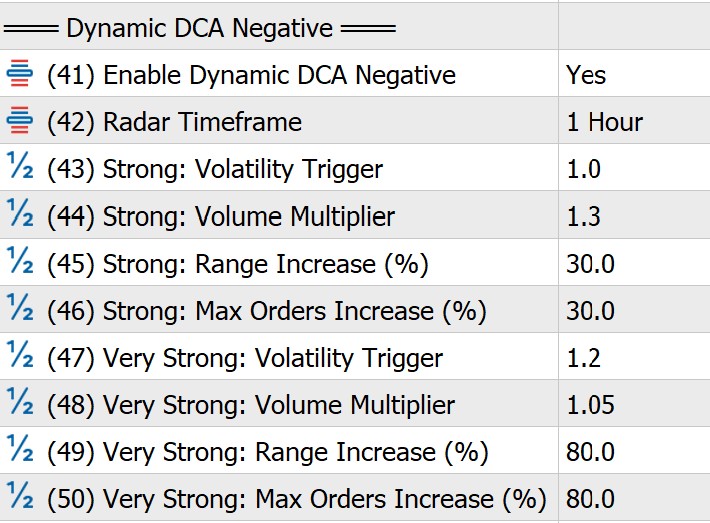
This is a Radar-like feature designed to detect early market shifts, automatically adjusting the negative DCA step distance, volume multiplication multiplier, and the maximum number of negative DCA orders. Through this feature, the market condition is classified into 3 distinct states:
Normal
Strong
Very Strong
If the Radar detects that the market momentum is intensifying, the system will automatically widen the DCA distance, lower the volume multiplication multiplier, and expand the maximum number of negative DCA orders. The actual cost for the Stop Loss (SL) threshold remains strictly unchanged!
(41) Enable Dynamic DCA Negative: The default is YES - Enabled.
(42) Radar Timeframe: The specific candlestick chart timeframe utilized by the Radar algorithm to calculate market velocity and momentum expansion. The default is H1 (1 hour).
(43) Strong: Volatility Trigger: The mathematical threshold that defines a "Strong" market. When the calculated market volatility exceeds this value, the Radar immediately transitions RedBot from Normal to Strong mode. The default is 1.0
(44) Strong: Volume Multiplier: The updated lot-size multiplication factor applied when the market shifts into the Strong state. RedBot automatically reduces risk by dropping the volume multiplier down to this value, ensuring a safer, less aggressive lot allocation. The default is 1.2
(45) Strong: Range Increase (%): The percentage by which the distance between subsequent negative DCA orders is widened. The default is 30.
(46) Strong: Max Orders Increase (%): The percentage increase granted to the maximum number of safety DCA orders allowed. The default is 30.
(47) Very Strong: Volatility Trigger: The secondary, highest tier threshold indicating extreme market conditions (typically seen during high-impact news, black swan events, or heavy breakouts). A volatility surge past this value triggers this state. The default is 1.2
(48) Very Strong: Volume Multiplier: The volume multiplier factor applied during extreme volatility conditions. The default is 1.05
(49) Very Strong: Range Increase (%): The percentage by which the distance between subsequent negative DCA orders is widened. The default is 80.
(50) Very Strong: Max Orders Increase (%): The percentage increase granted to the maximum number of safety DCA orders allowed. The default is 80.
7. Trailing Stop Settings
Below is the Trailing Stop Settings interface in RedBot (Figure 7)
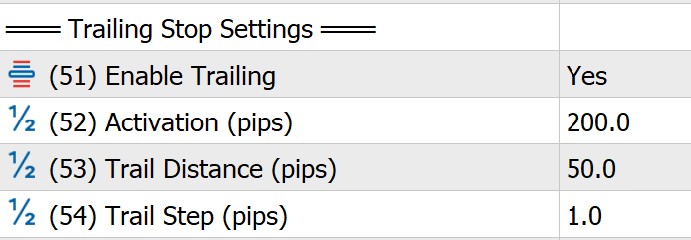
The Trailing Stop function; when used, RedBot will activate profit protection once conditions are met.
(51) Enable Trailing: The default is YES - Enabled.
(52) Activation (pips): The price point that activates the Trailing Stop function. Measured in pips. The default is 200.
(53) Trail Distance (pips): The distance to set the Stop relative to the activation point in item (52). Measured in pips. The default is 50.
(54) Trail Step (pips): The Stop step size. Measured in pips. The default is 1.
7. Time Filter Settings (GMT-0)
Below is the Time Filter Settings (GMT-0) interface in RedBot (Figure 8)
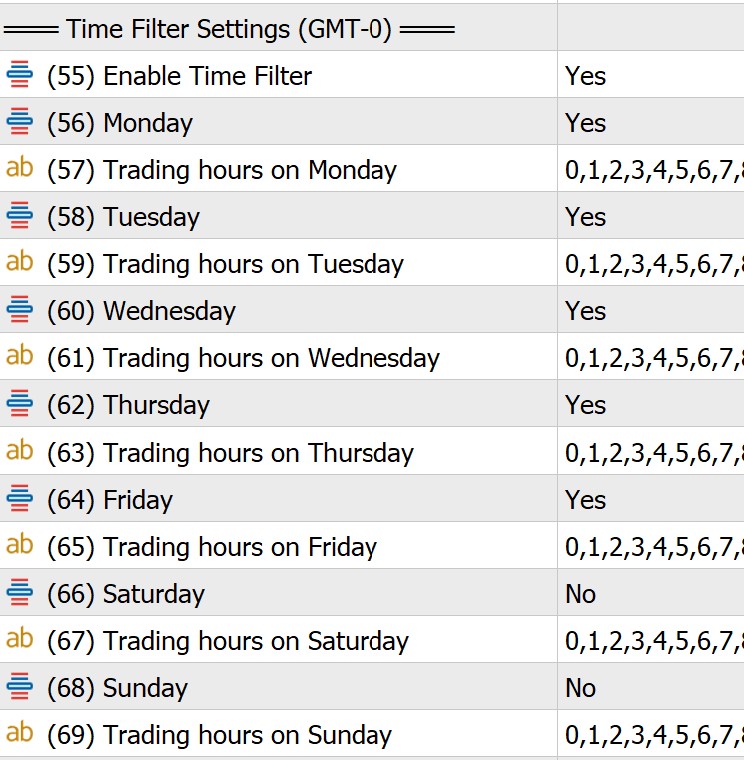
This section manages the times during which RedBot is allowed to enter trades. Time is managed according to the UTC (GMT-0) timezone.
(55) Enable Time Filter: The default is YES - Enabled.
(56) Monday: The default is YES - Enabled.
(57) Trading hours on Monday: The default is Full time.
(58) Tuesday: The default is YES - Enabled.
(59) Trading hours on Tuesday: The default is Full time.
(60) Wednesday: The default is YES - Enabled.
(61) Trading hours on Wednesday: The default is Full time.
(62) Thursday: The default is YES - Enabled.
(63) Trading hours on Thursday: The default is Full time.
(64) Friday: The default is YES - Enabled.
(65) Trading hours on Friday: The default is trading until 12:00 only, to limit the risk of trades being held over the weekend.
(66) Saturday: The default is NO - Disabled.
(67) Trading hours on Saturday: The default is Full time.
(68) Sunday: The default is NO - Disabled.
(69) Trading hours on Sunday: The default is Full time.
8. News Filter Settings
Below is the News Filter Settings interface in RedBot (Figure 9)
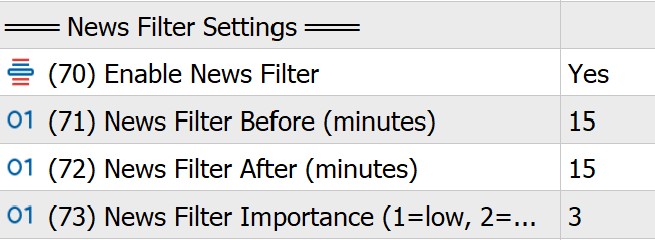
This is the news filter section, which prevents RedBot from entering trades when major news events are approaching, such as: Interest Rate, NFP, CPI, GDP, FOMC, PMI, etc.
(70) Enable News Filter: The default is YES - Enabled.
(71) News Filter Before (minutes): The default is 15 minutes. Avoids entering trades 15 minutes before news release.
(72) News Filter After (minutes): The default is 15 minutes. Avoids entering trades 15 minutes after news release.
(73) News Filter Importance (1=low, 2=medium, 3=high): The default is 3.
9. Market Condition Settings
Below is the Market Condition Settings interface in RedBot (Figure 10)
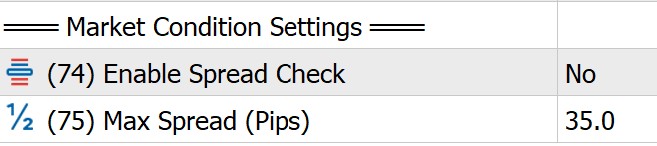
This section checks the spread between the Ask price and the Bid price. If the spread is too wide beyond the allowed limit, the Bot will not enter a trade.
(74) Enable Spread Check: The default is NO - Disabled.
(75) Max Spread (Pips): The default is 35. Value is in pips.
Conclusion
The default parameter set pre-configured in the system is intended solely to help customers easily familiarize themselves with and experience RedBot during the initial setup. The financial market is always volatile; therefore, RedBot is designed with maximum flexibility so that you can proactively change and optimize the indicators to best suit your capital size, risk tolerance, and personal trading style. You can thoroughly test on a Demo account or perform your own Backtesting to build your own custom configuration (see Backtest guide here).
Share this insight with your trading network
If you found this article valuable, help us spread the knowledge by sharing it on your social channels.