BACKTEST REDBOT ON METATRADER 5 GUIDE
This article provides a detailed guide on how to accurately backtest RedBot on the MT5 platform. It explains how to check historical data, optimize algorithmic parameters, and evaluate software performance to protect your capital before live trading.

Note before Backtesting: It is recommended to use a VPS as backtesting consumes significant system resources and time.
Part 1: Configuring Parameters Before Backtesting
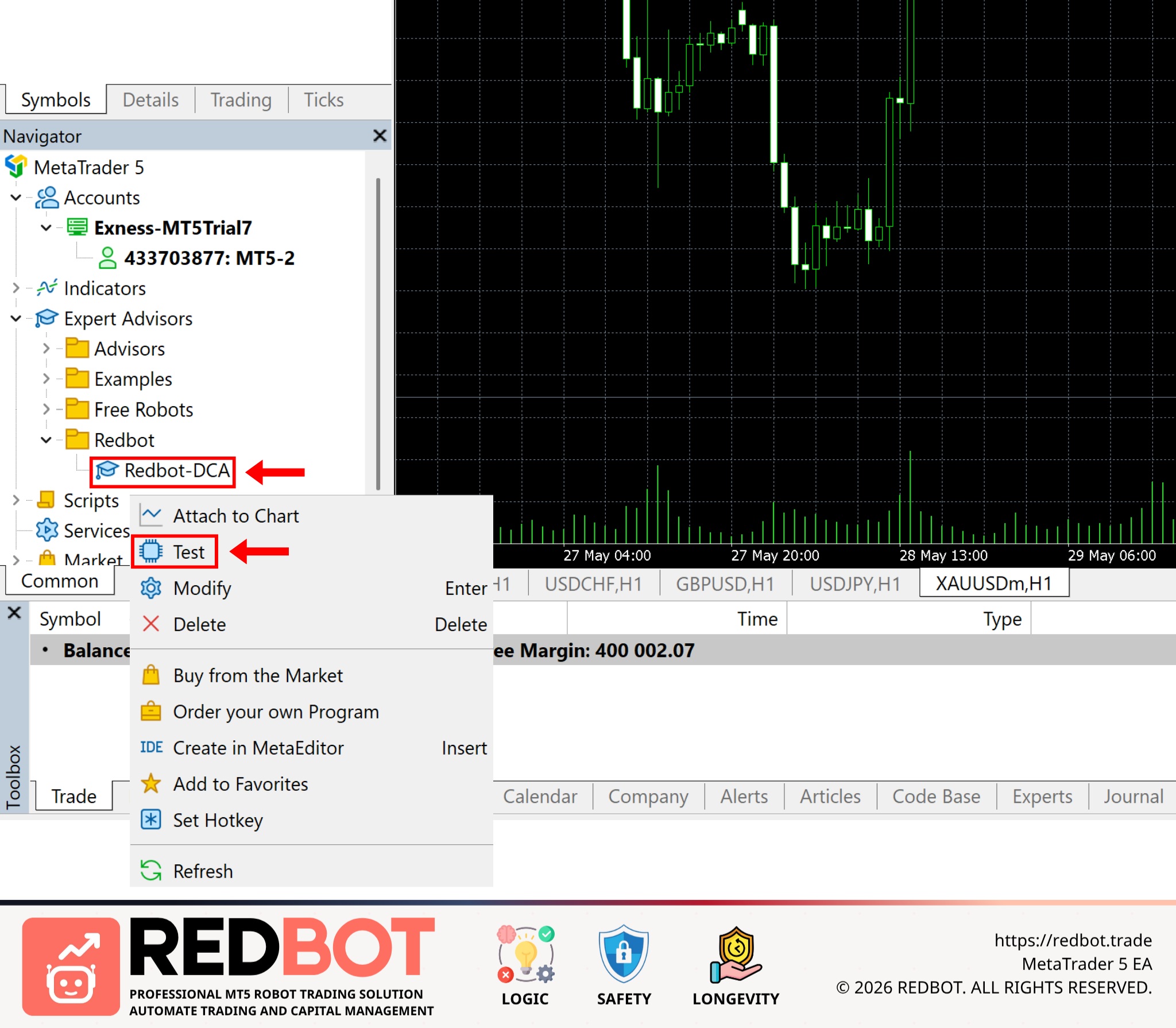
First, open the Backtest interface by right-clicking on the Redbot-DCA file → select Test
The Backtest configuration interface will appear as shown below
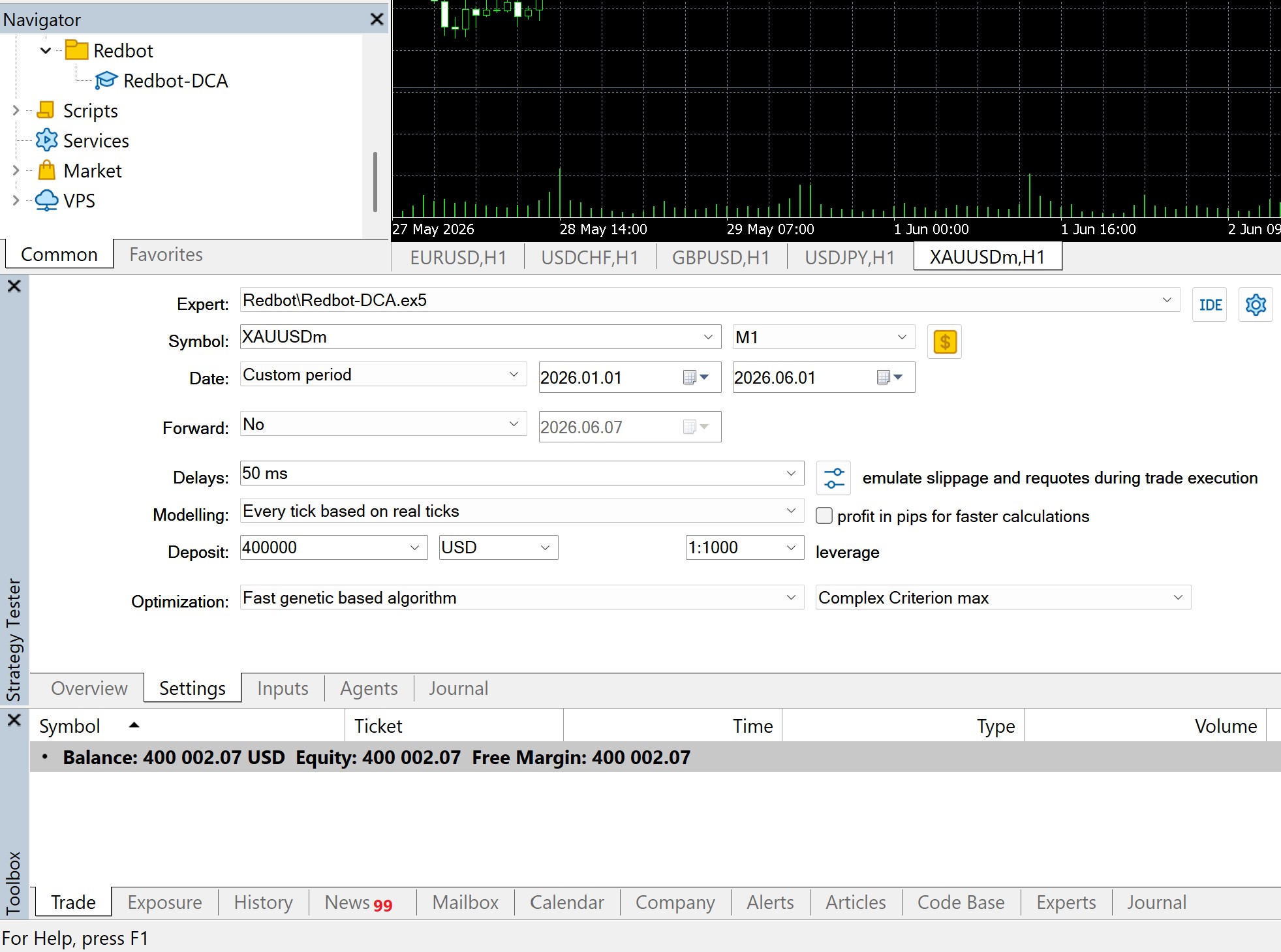
Analysis of each parameter:
Expert: This is the EA (Expert Advisor) you want to backtest. By default, select Redbot-DCA.ex5
Symbol: The trading pair used for backtesting. Recommended parameter is XAUUSDm (Gold)
Timeframe: The timeframe RedBot will use to read candle data for entry/exit signals. Smaller timeframes provide higher accuracy compared to real-time. Recommended parameter is M1
Date: The period you want to backtest. It is recommended to test over a sufficiently long period (6/12/24 months) to see if RedBot remains stable across various market conditions
Forward: This is for out-of-sample testing. If enabled, MT5 splits data into two parts: one for optimization and one for real-world testing. Recommended parameter is No.
Delays: Simulates order execution latency. To be closer to reality, choose a delay suitable for your broker and VPS connection. Recommended parameter is 50 ms
Modelling: How MT5 generates price data for backtesting. Recommended parameter is Every tick based on real ticks
Deposit: Your initial capital. Set this to the amount you intend to trade with for the most accurate assessment. Recommended parameter is 400,000 USD
Leverage: Affects the margin required to open orders. Recommended parameter is 1:1000
Optimization: This runs parameter optimization. MT5 will try various combinations to find the best configuration. You can choose Slow complete algorithm or Fast genetic based algorithm depending on your PC/VPS specs. Slow complete algorithm is slower but more thorough, while Fast genetic based algorithm is faster and prioritizes profitable strategies.
Criterion: The criteria MT5 uses to rank optimization results. Recommended parameter is Complex Criterion max
Continue to the Inputs tab to switch to RedBot parameters
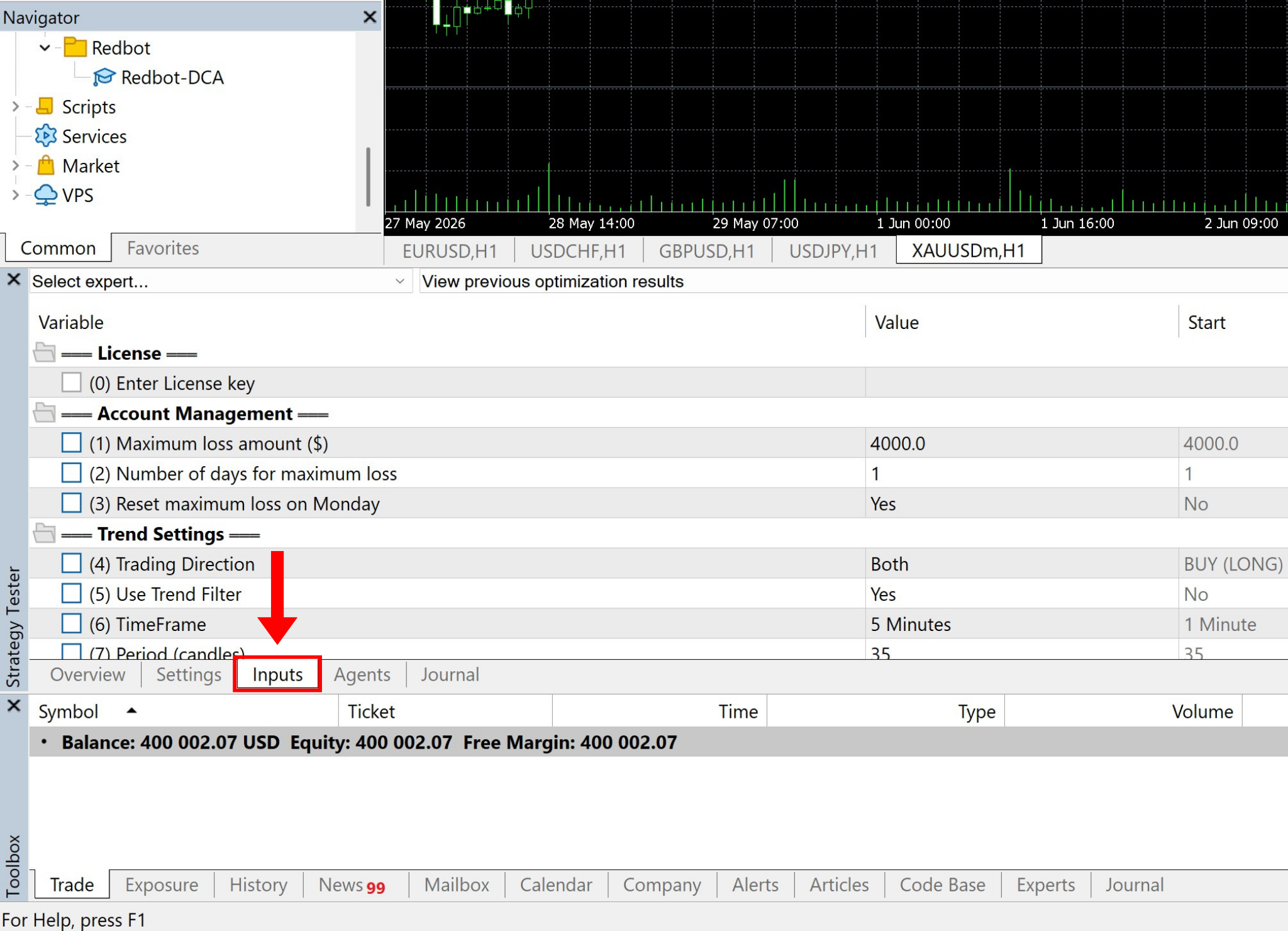
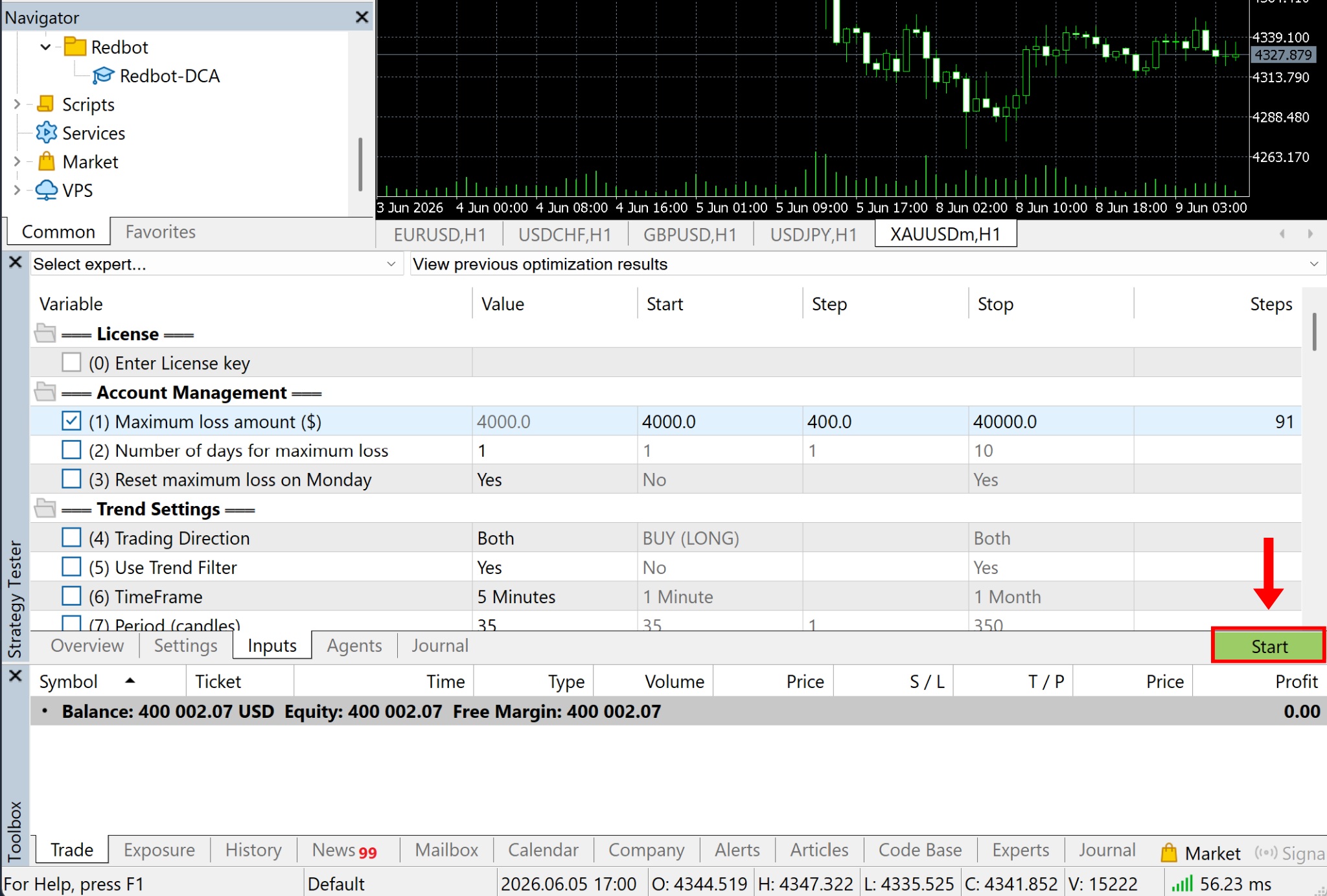
Here, the operational parameters for RedBot are displayed in detail, for a better understanding, you can refer to the article [Redbot Complete Functional Parameters Guide]. When you need to test a specific parameter, check the empty box next to the item and edit the value as desired
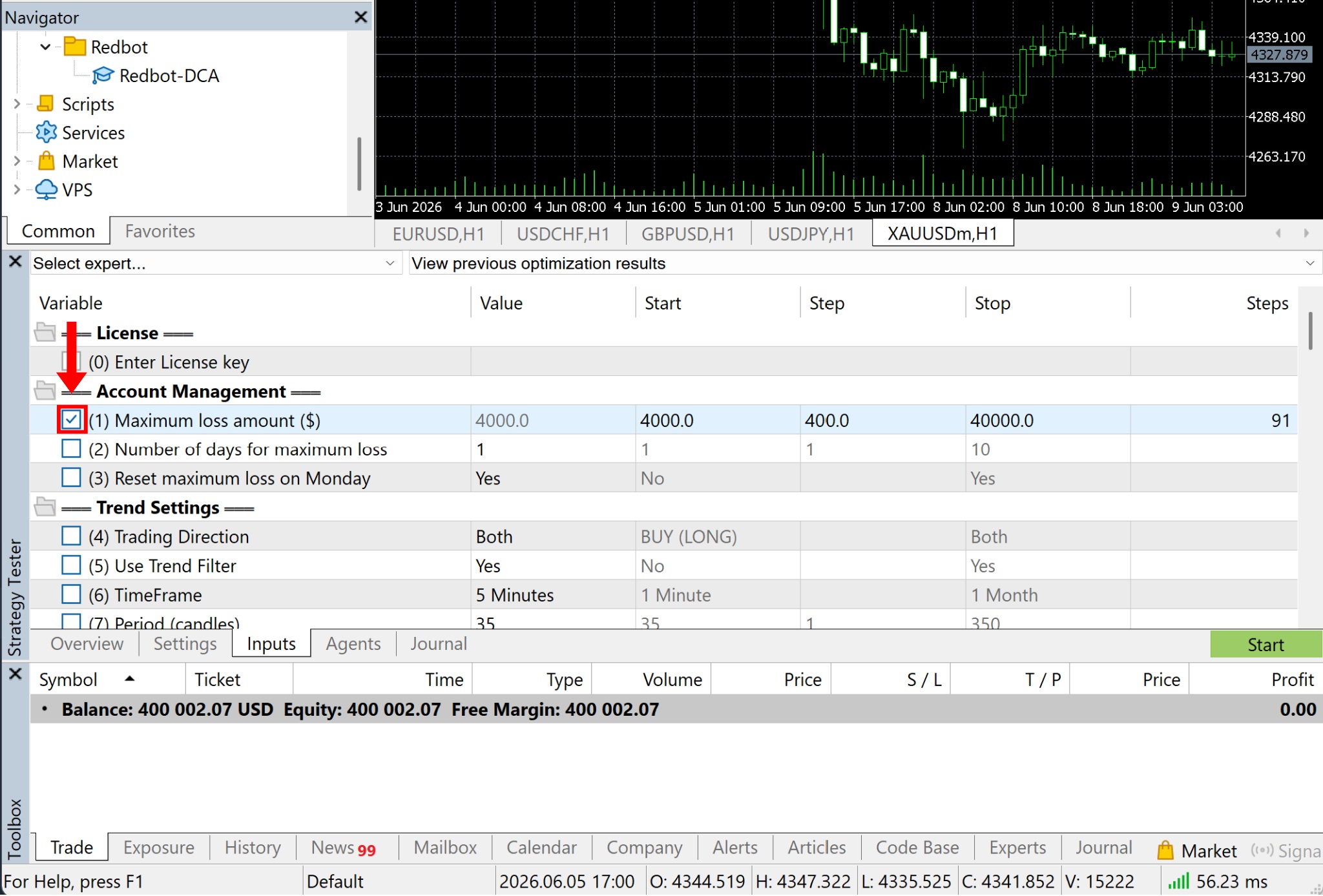
Explanation of the value columns:
Value: The value currently used for the test. If you do not select this item for backtesting, RedBot will operate using this value
Start: The starting value of the optimization range. Reference example is 4000
Step: The increment between test attempts. Reference example is 400
Stop: The ending value of the optimization range. Reference example is 40000
Steps: The number of values to be tested during optimization. Reference example is 91, meaning RedBot will test multiple levels from 4000 to 40000 with a step of 400
Part 2: Running the Backtest
After setting the parameters, click the Start button in the bottom right corner to begin the backtest
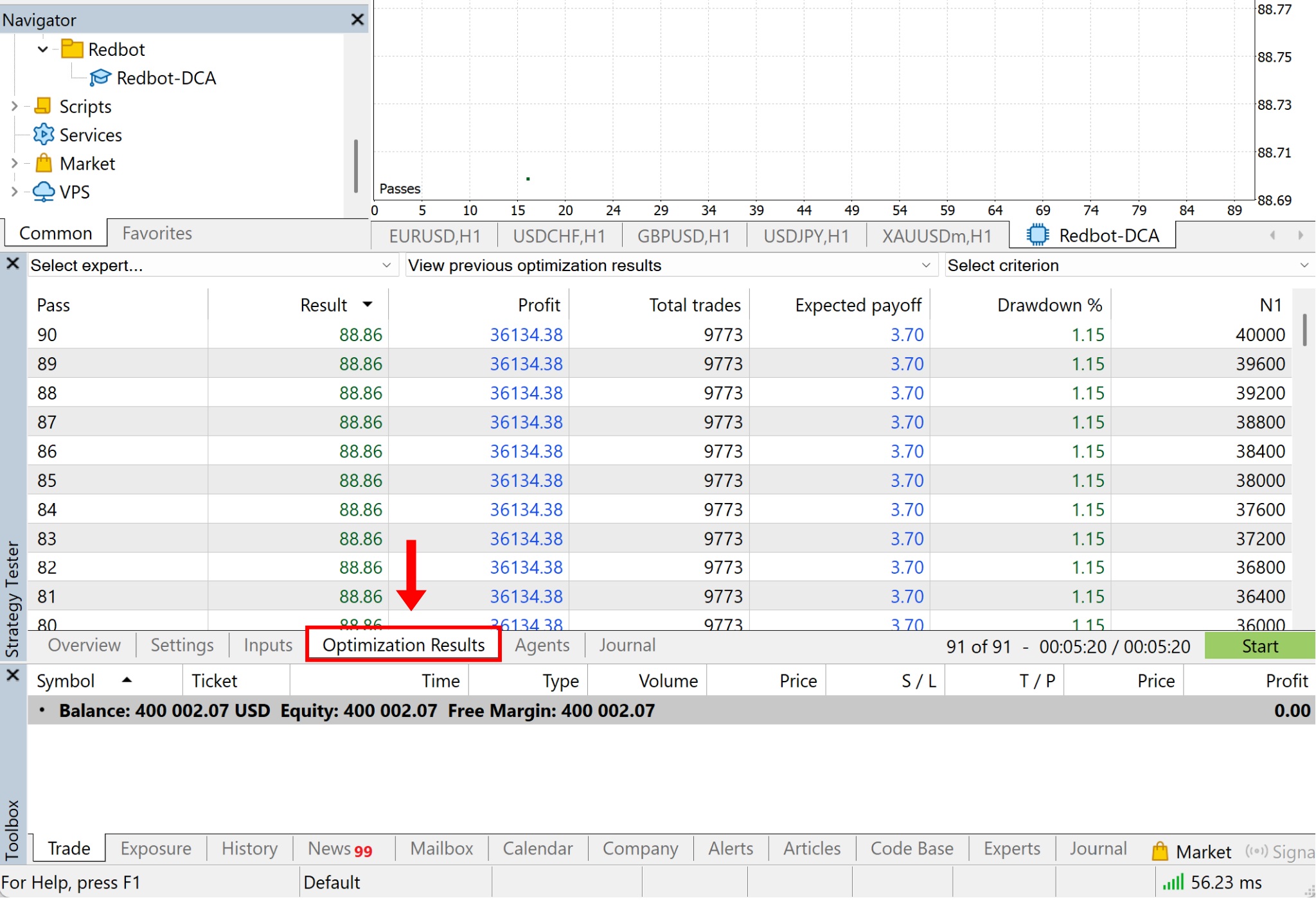
The speed depends on the number of parameters you want to test. After completion, click on Optimization Results to view all results
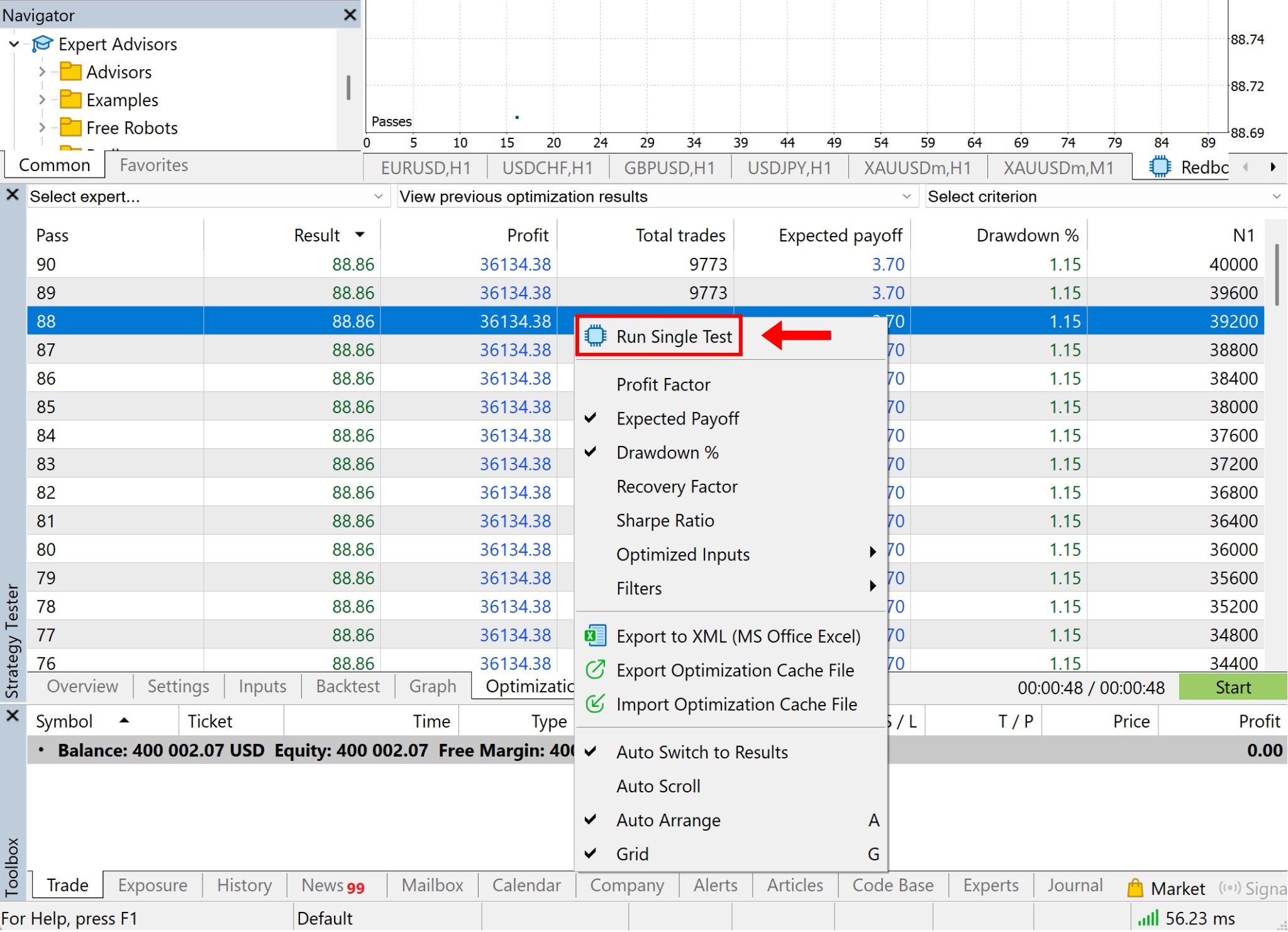
In the results list, right-click on the result you want to see in detail → then select Run Single Test
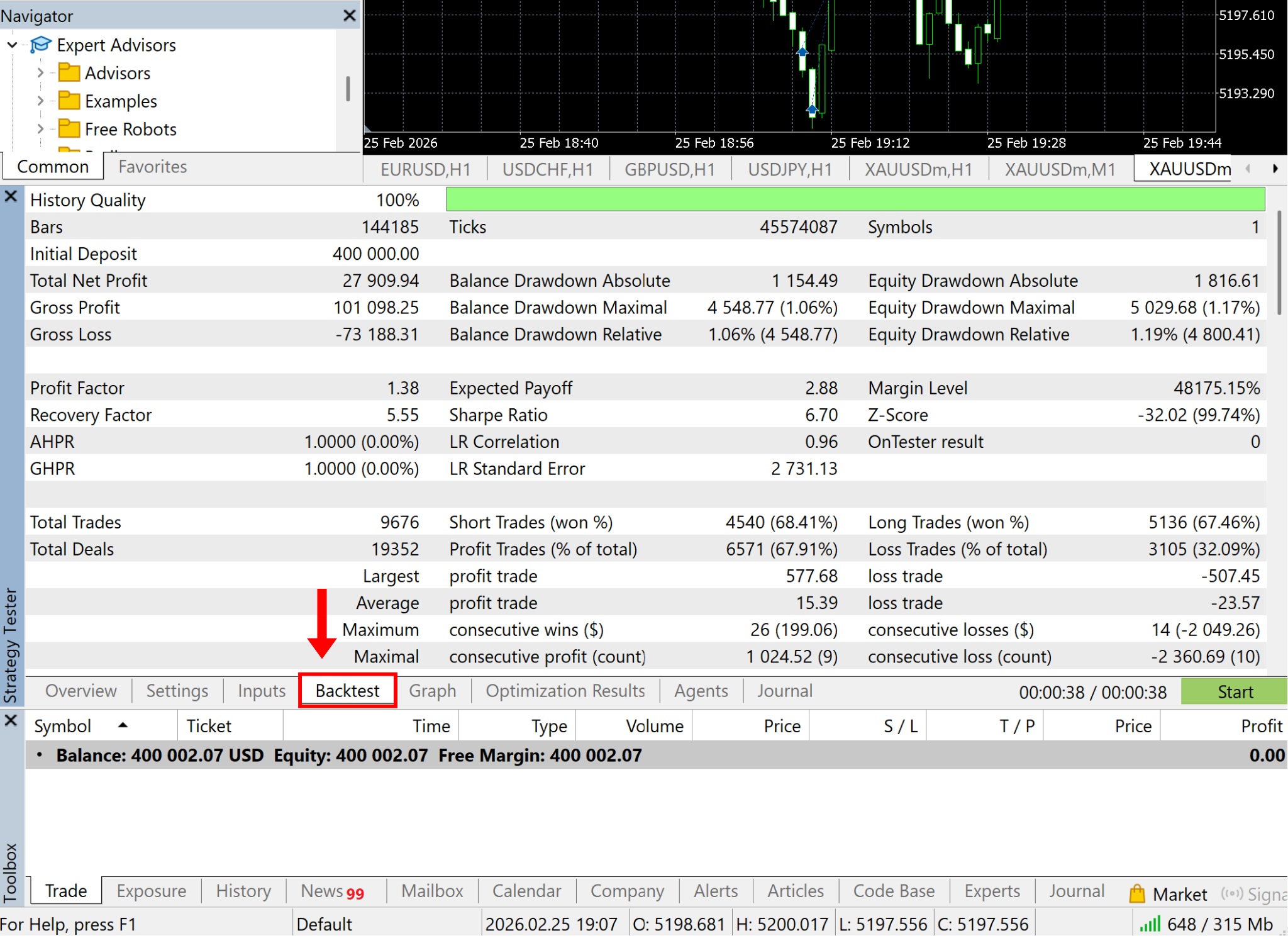
After running, click on the Backtest tab to display all metrics for the selected result
Part 3: Save & Load Parameters for RedBot
Once you have selected a result that fits your strategy, you can save it by going to the Inputs tab → right-click in an empty area → select Save
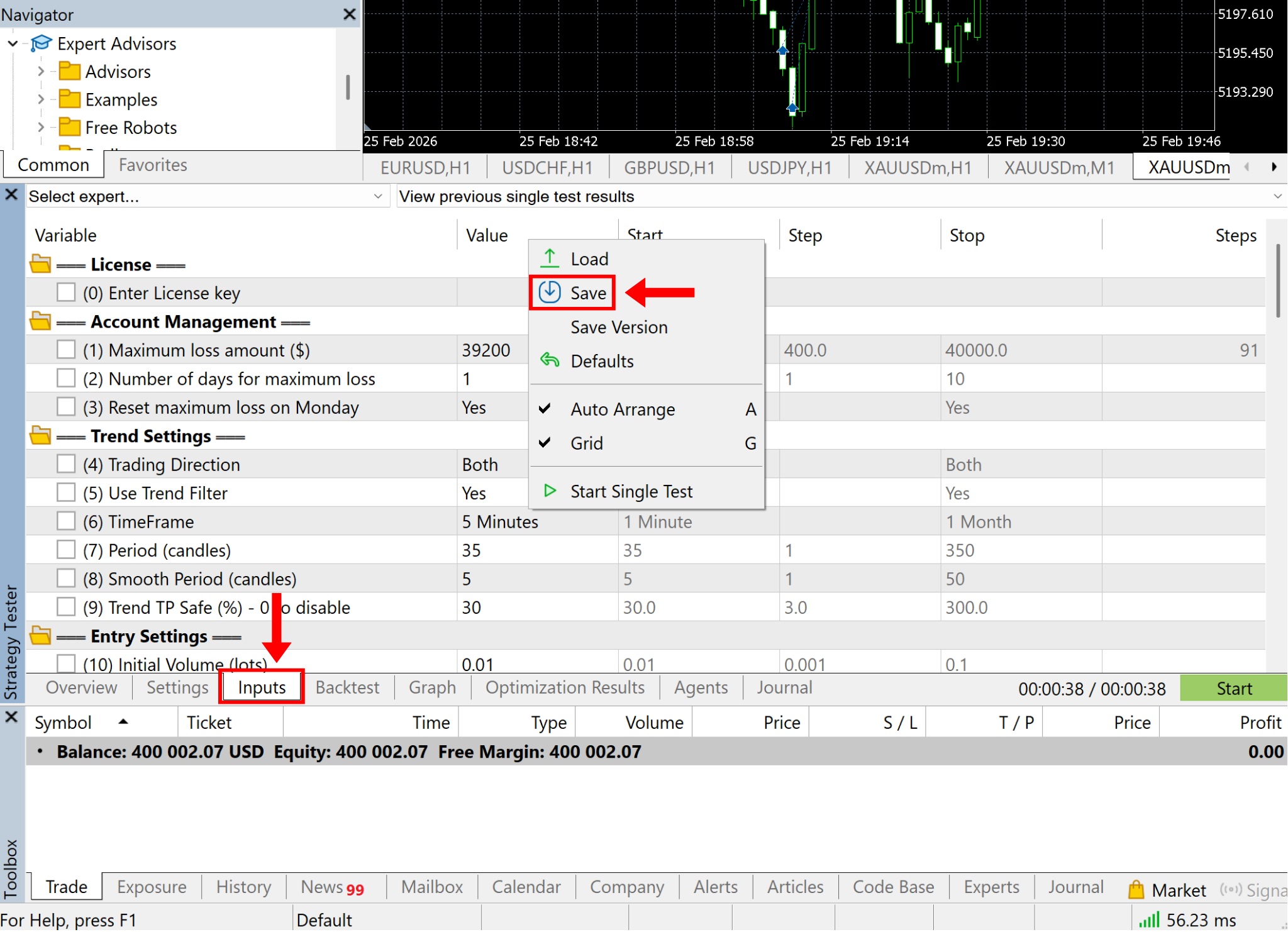
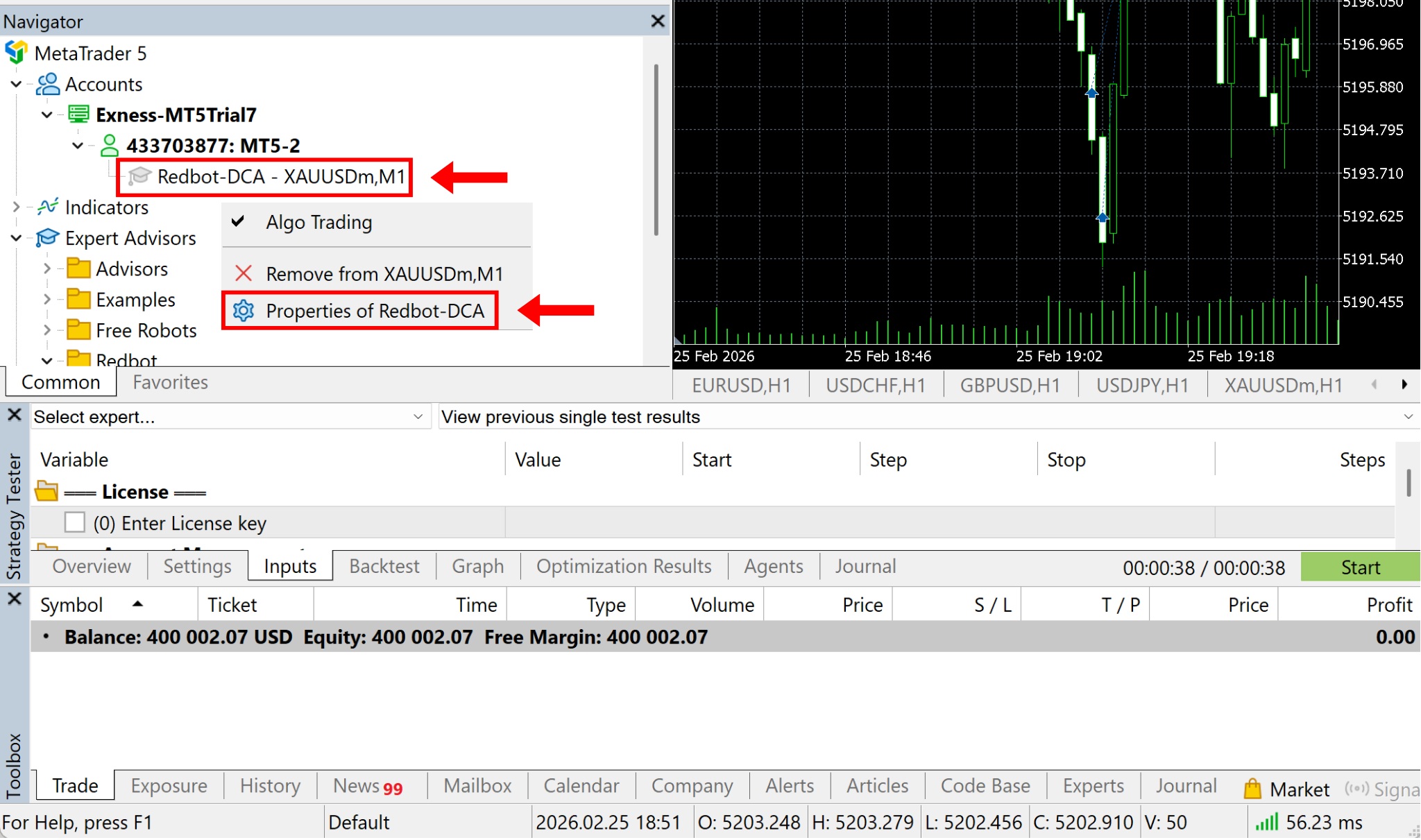
The saved file will have a .set format. To apply this parameter set to RedBot for operation, right-click on Redbot-DCA → then select Properties of Redbot-DCA
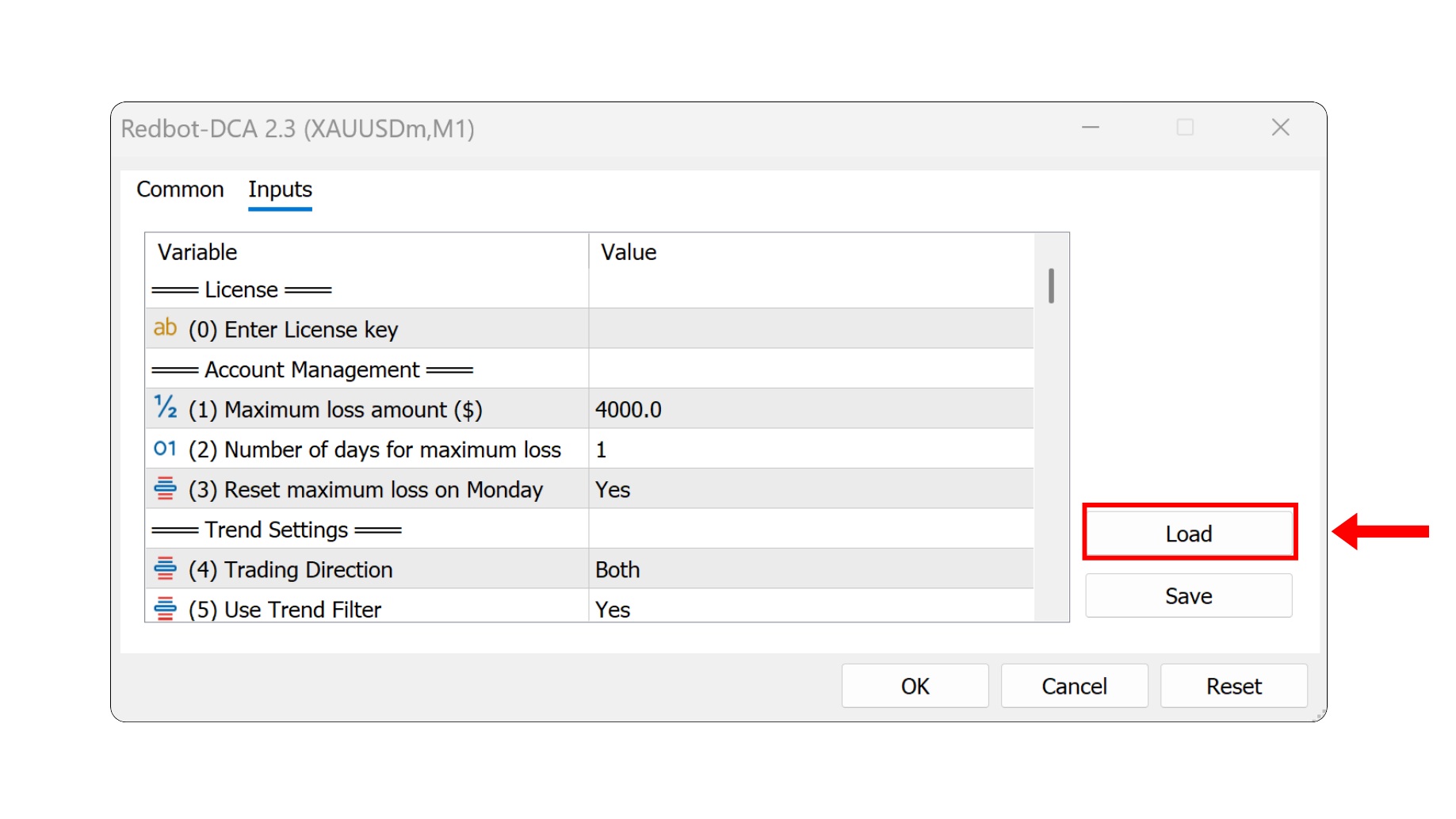
In the Inputs tab, click the Load button
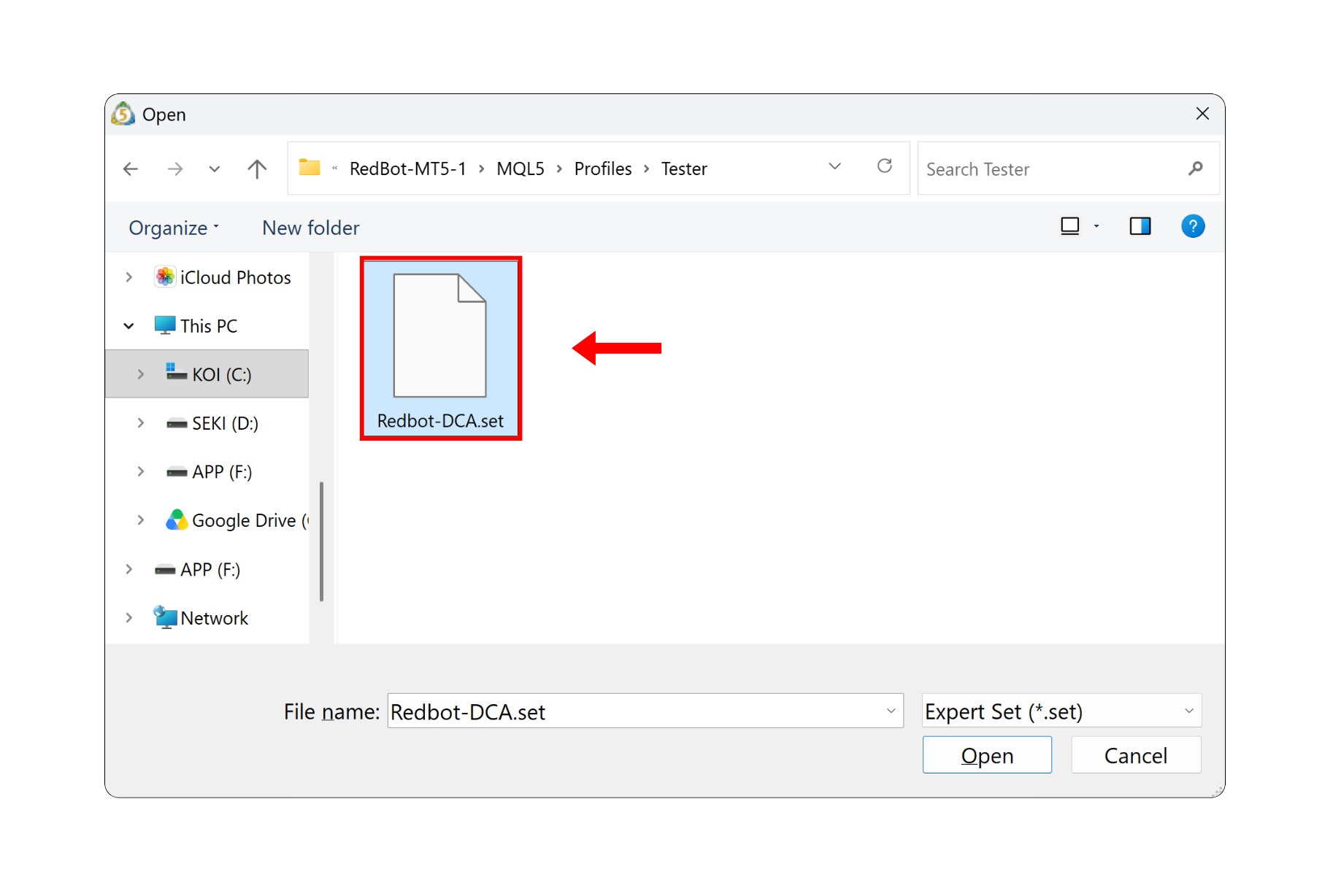
Select the configuration file you saved, then click Open
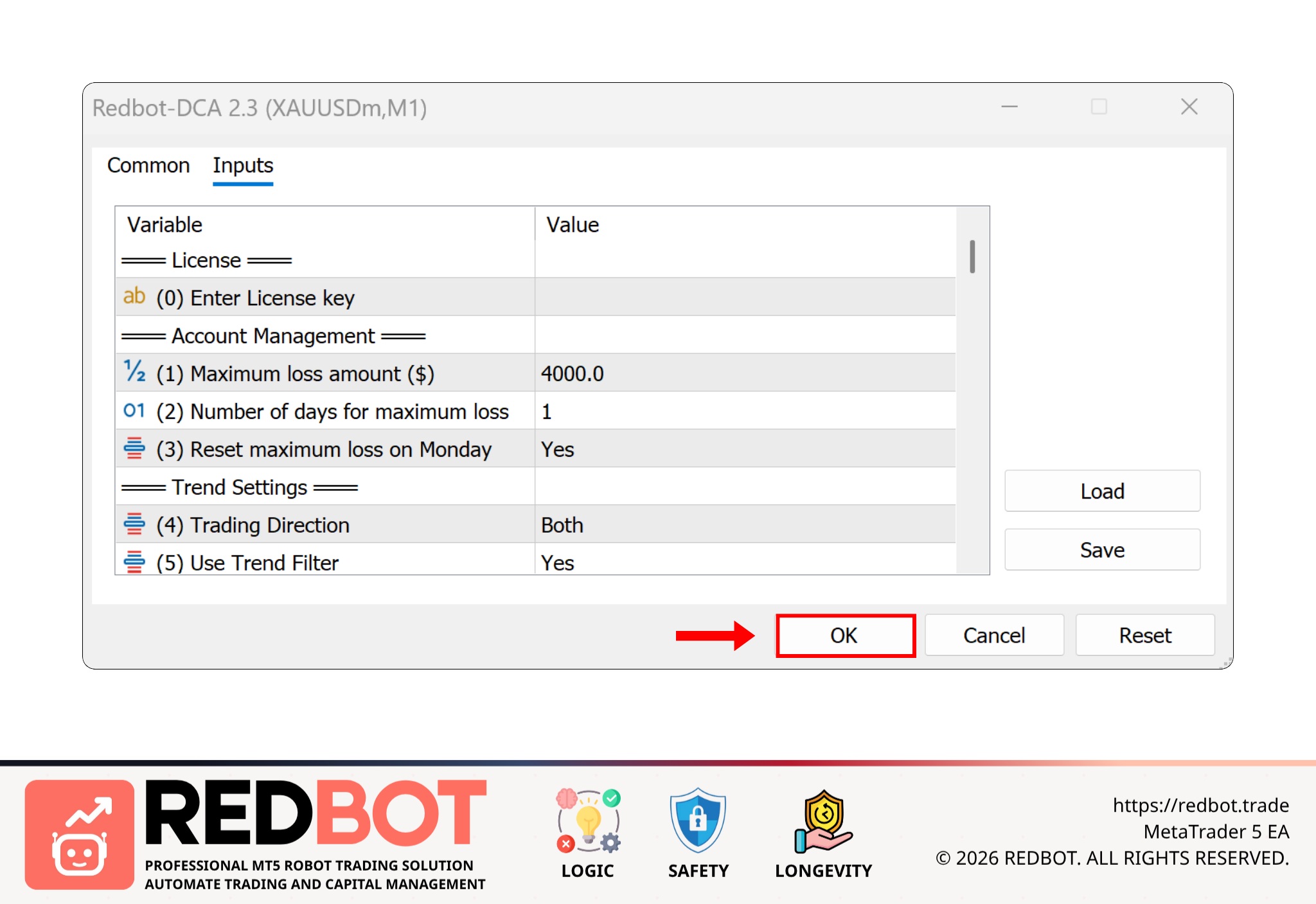
Now that RedBot has the new parameters applied, click OK and start operating as usual
Share this insight with your trading network
If you found this article valuable, help us spread the knowledge by sharing it on your social channels.