REDBOT MANAGER USER GUIDE (1-CLICK SETUP)
This article provides a detailed guide on how to use the RedBot Manager software. All functions have been integrated into the software in a streamlined manner, making operations simple and fast.
Part 1: Downloading RedBot Manager
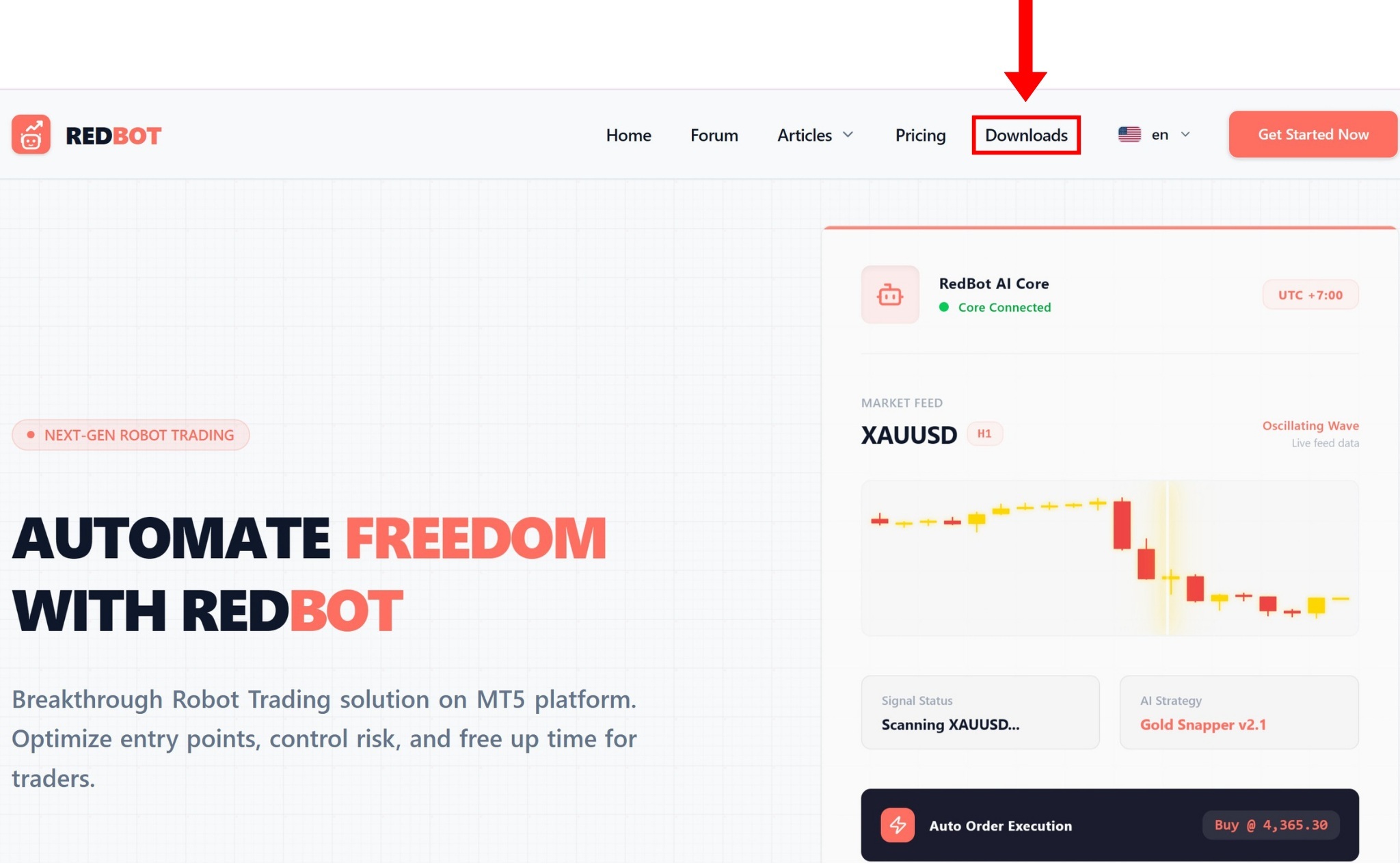
Visit the homepage https://redbot.trade/ and select the Downloads section
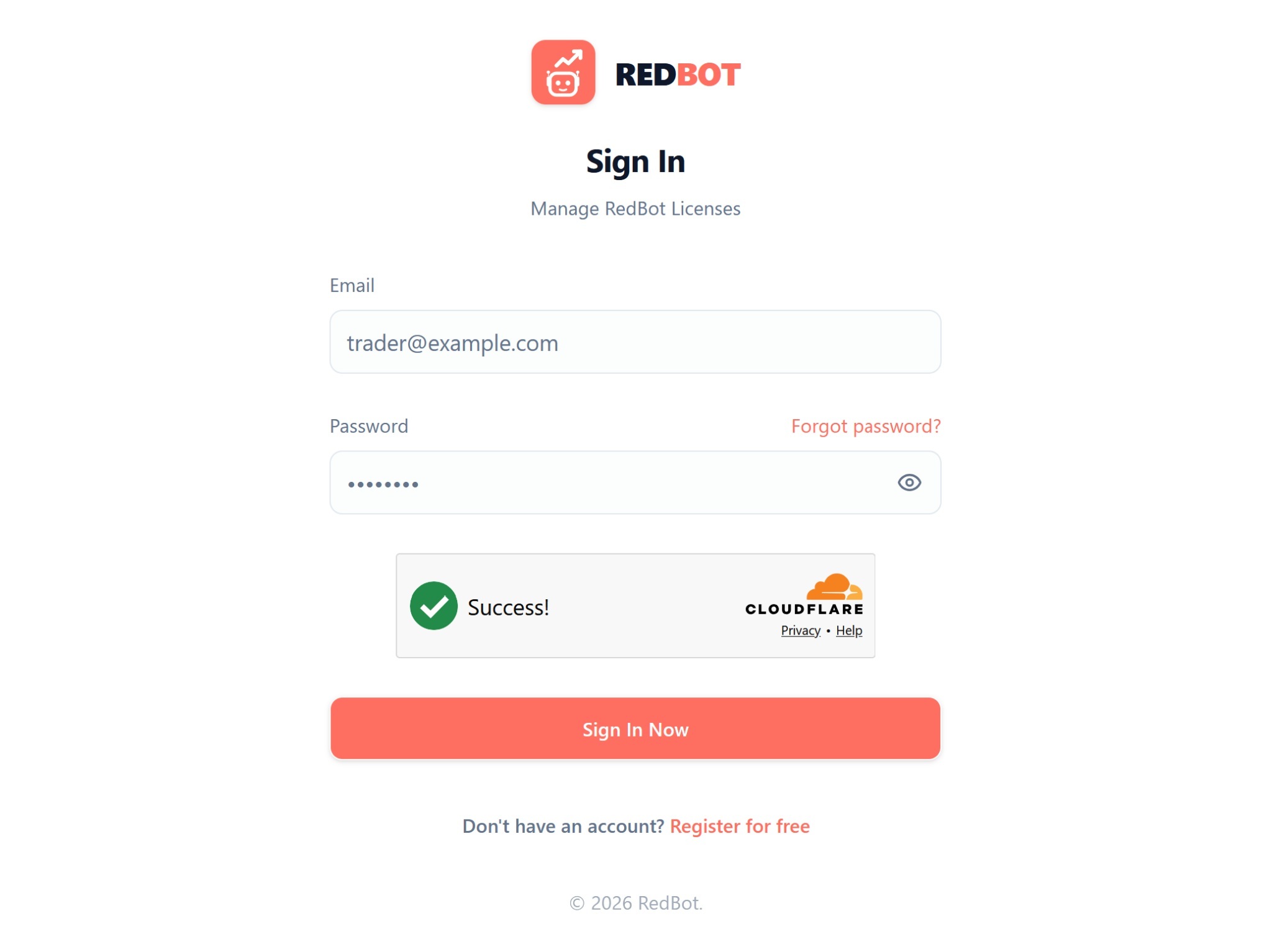
Here, the system will ask you to log in to your account (if you don't have one, please register a new one)
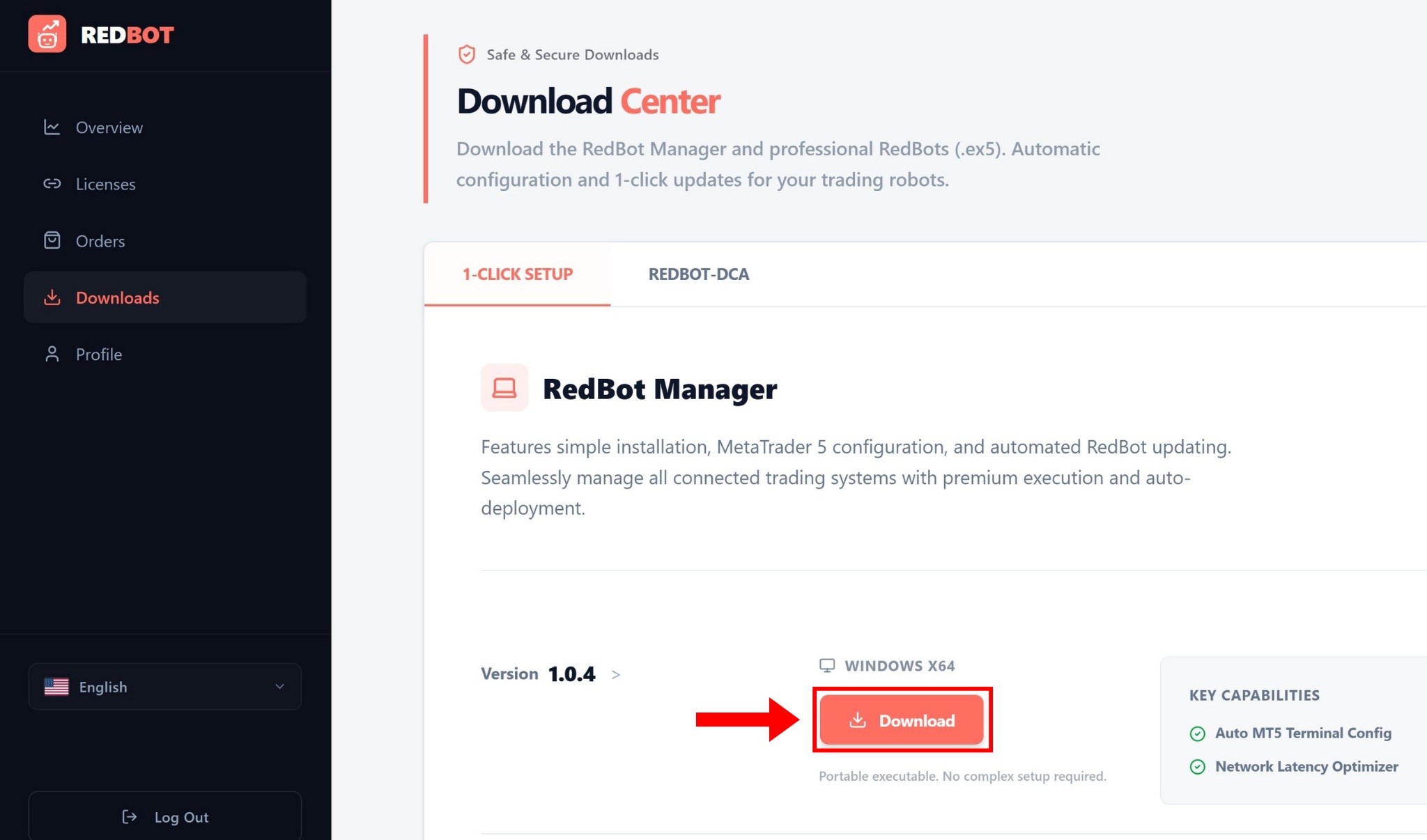
Once logged in successfully, the system will take you to the Dashboard. In the 1-CLICK SETUP section, click Download to save the RedBot Manager software to your computer
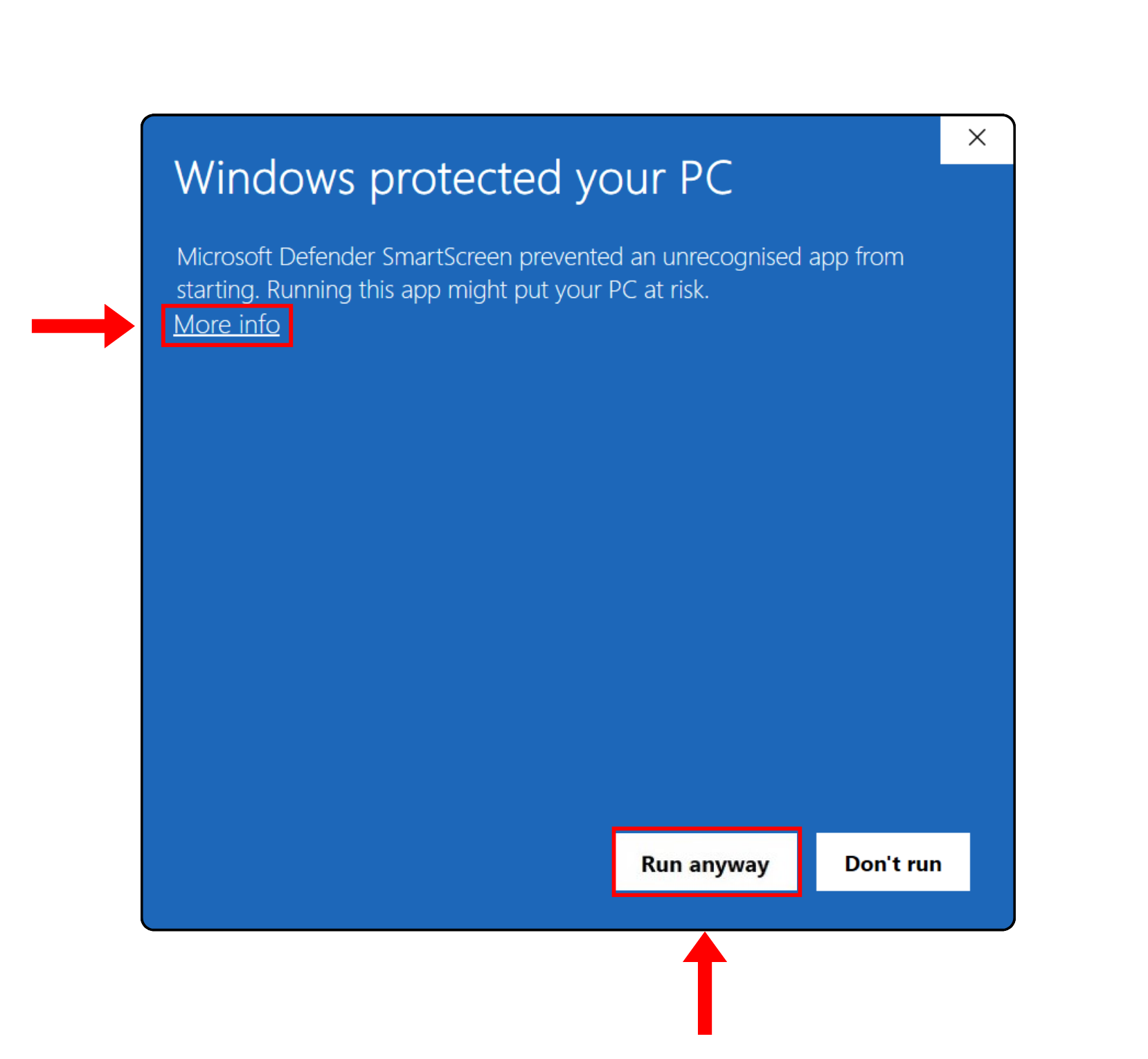
Run the redbot-manager.exe file you just downloaded to start using it. Note: If you encounter the error shown below while running the software, please click on 'More info' and select 'Run anyway'
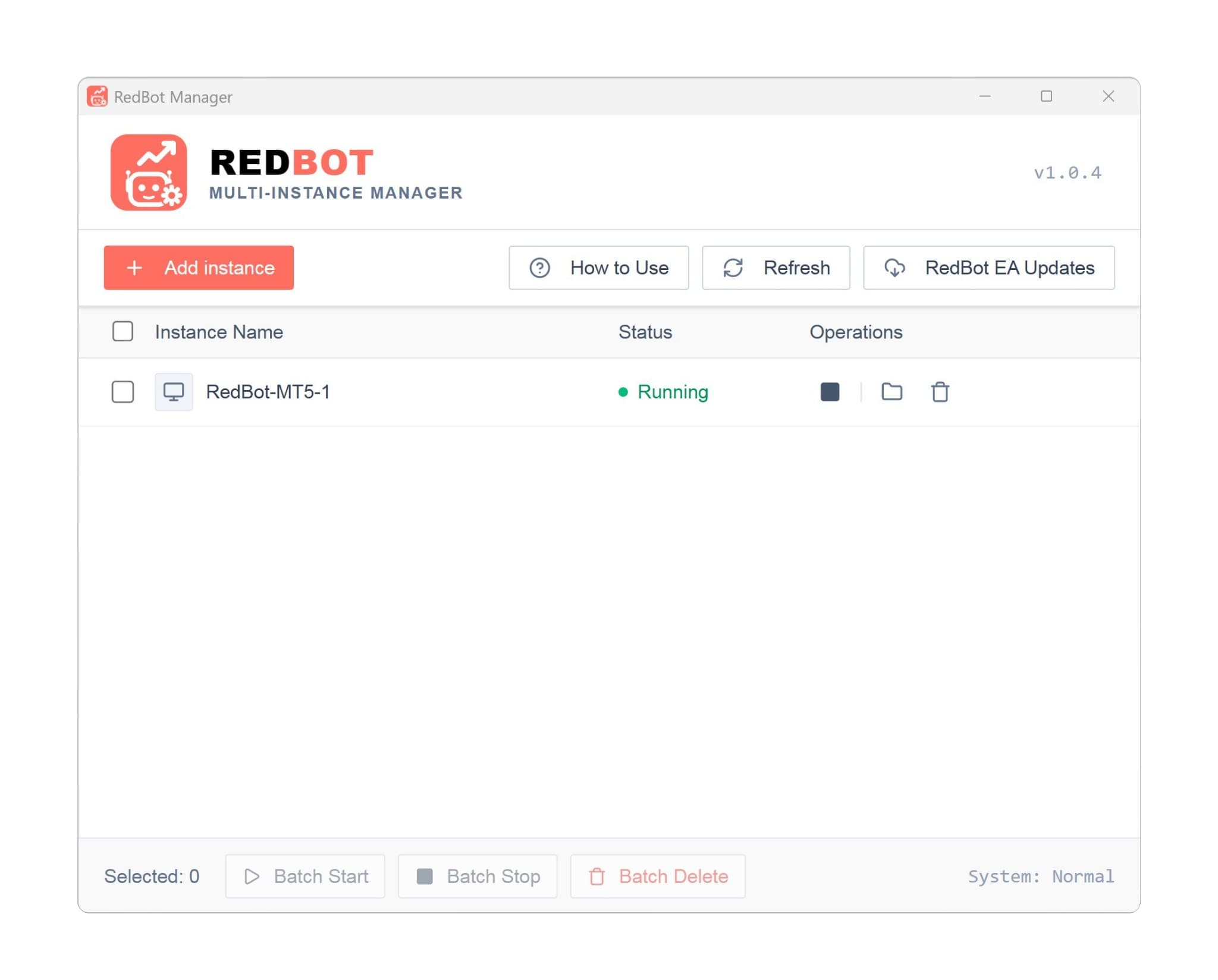
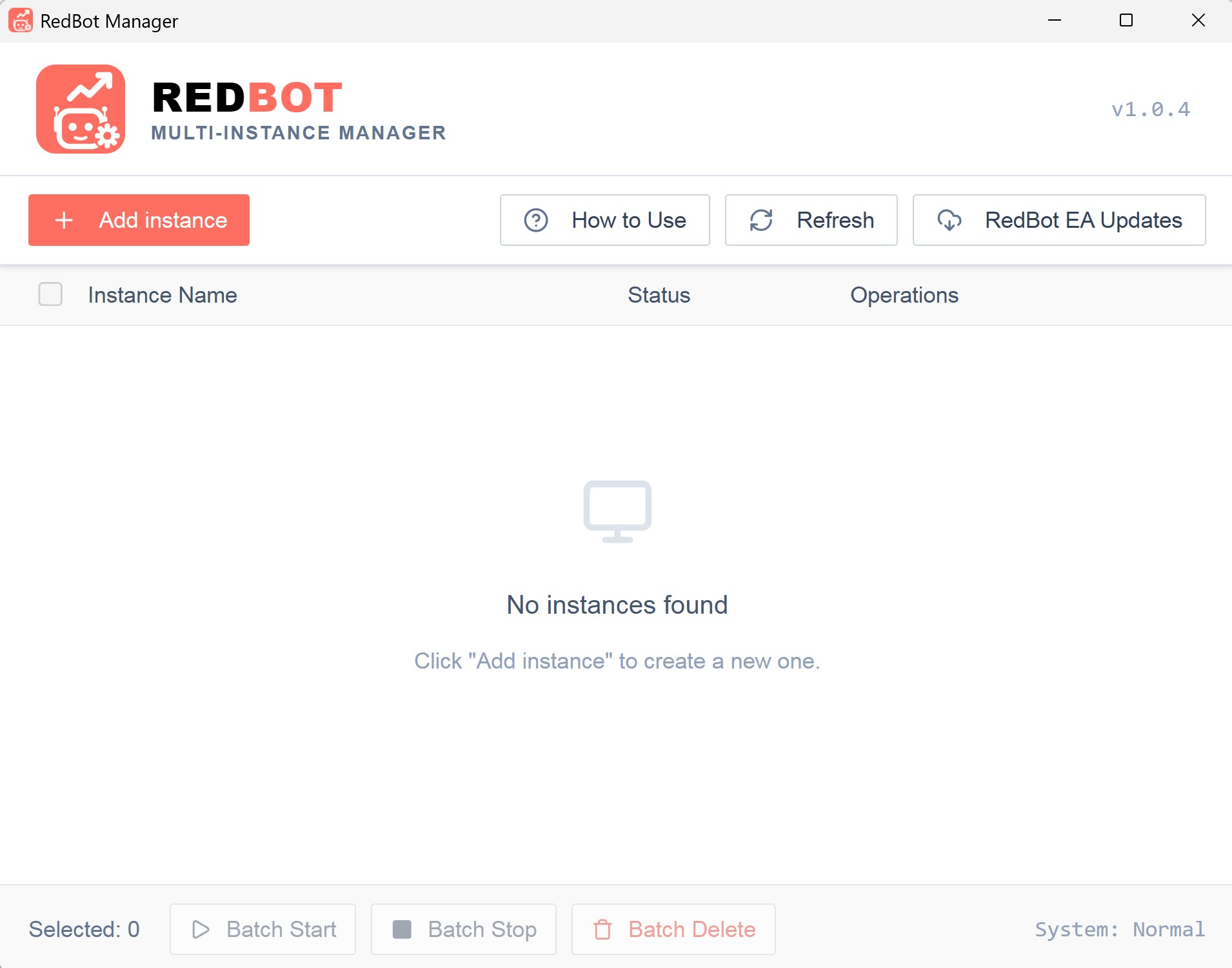
Once successfully launched, the software interface will display as follows
Part 2: Installing MT5 and RedBot
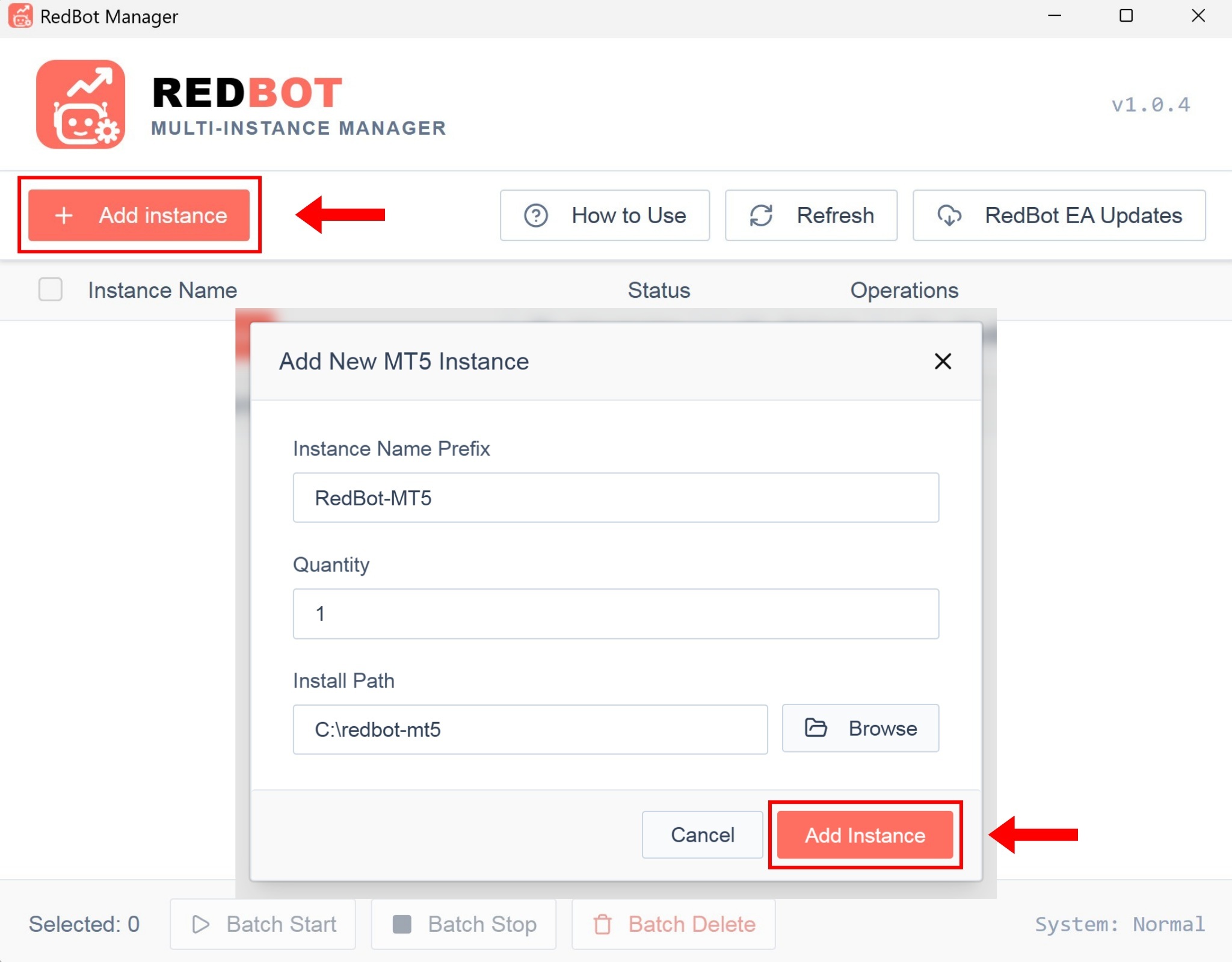
First, click the [+ Add instance] button to initialize a new MT5 session. You can adjust the parameters as you wish or leave them as default, then click the [Add Instance] button
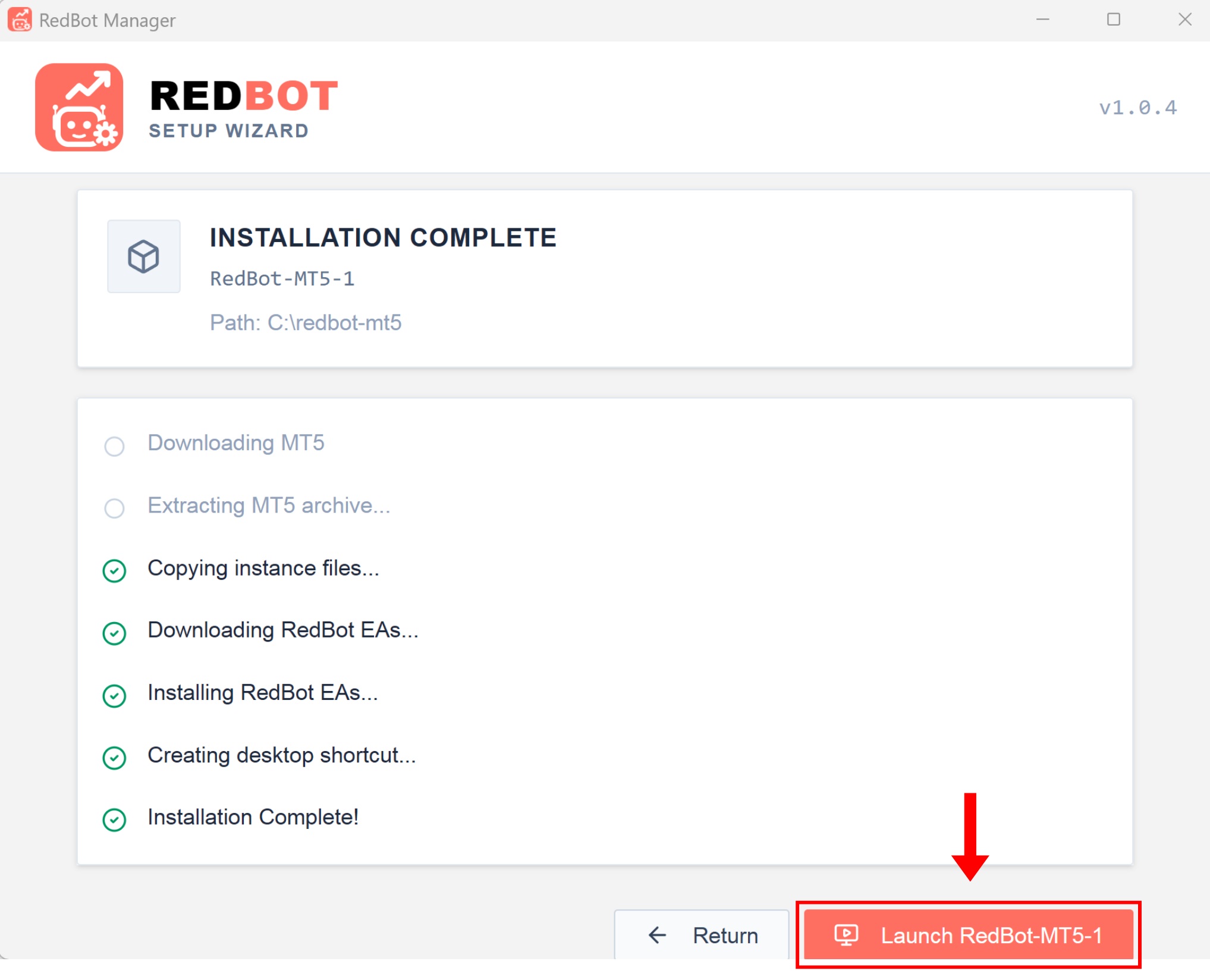
The software will automatically download and install MetaTrader 5. Once everything is finished, click the [Launch RedBot-MT5] button to launch MT5
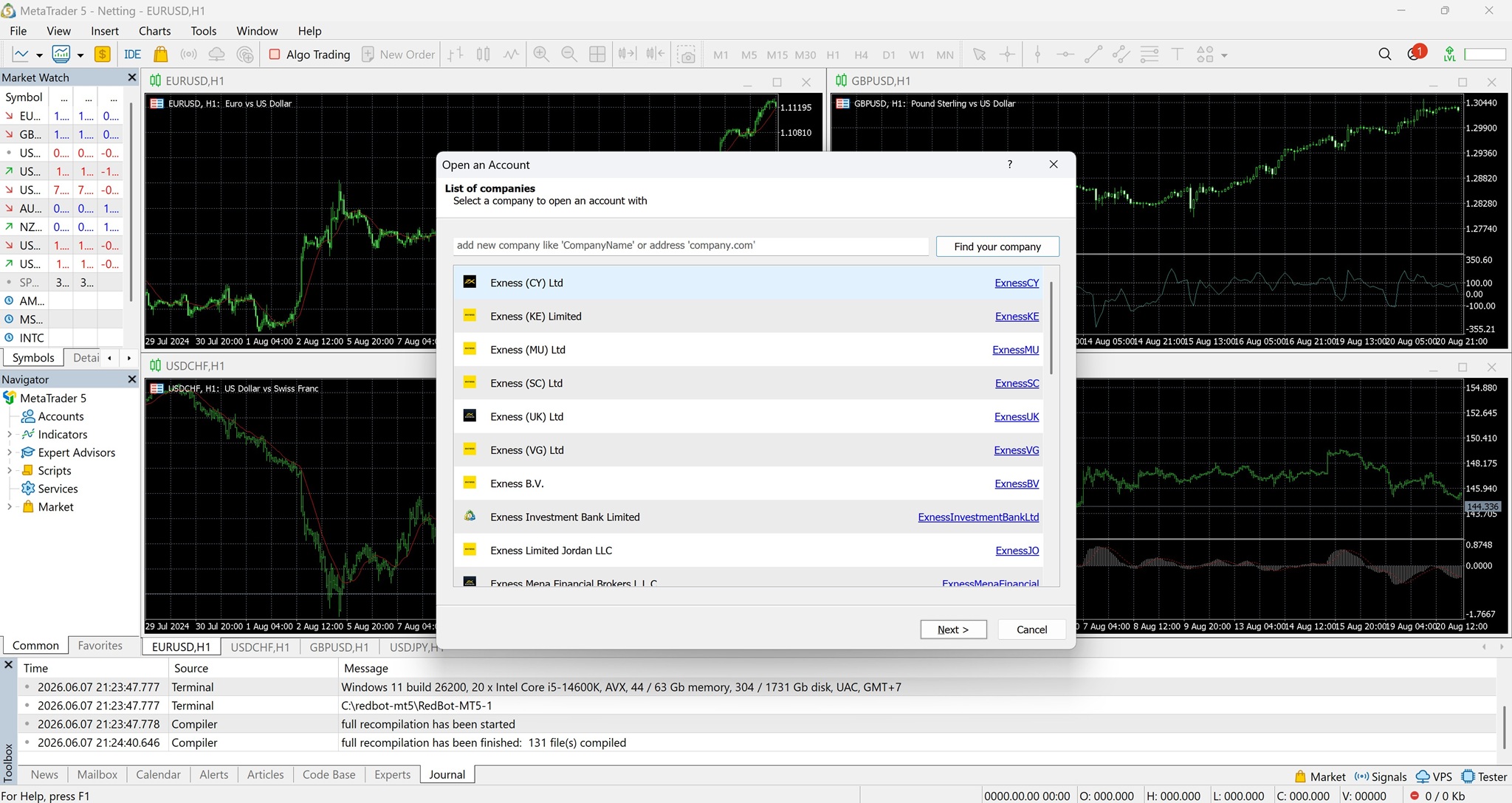
In the MT5 interface, you need to connect to your broker and log in to your account
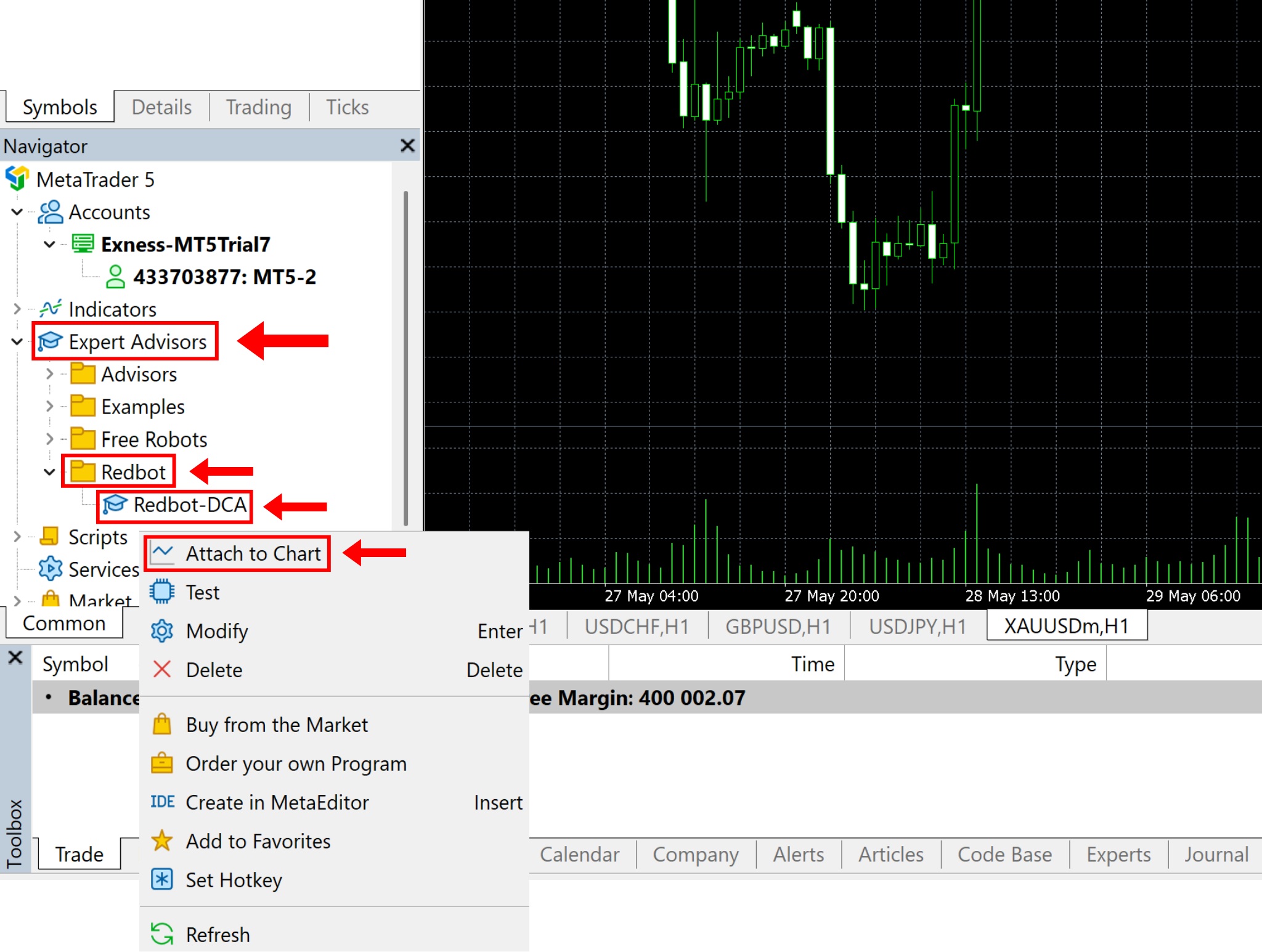
Once you have successfully logged in, open the window for the currency pair you want to trade, then double-click on Expert Advisors → then on Redbot → right-click on Redbot-DCA → select Attach to Chart
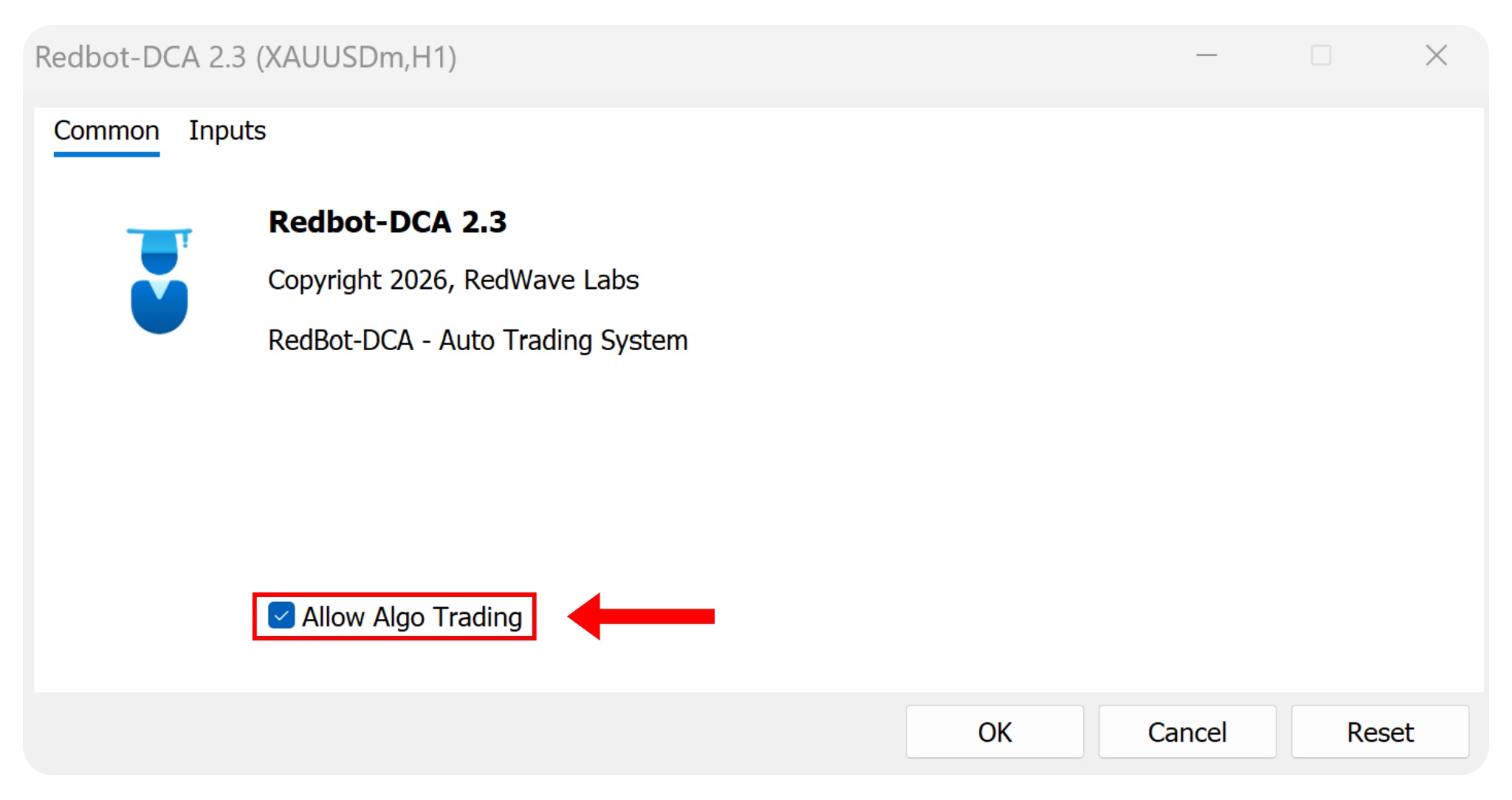
Check the Allow Algo Trading box
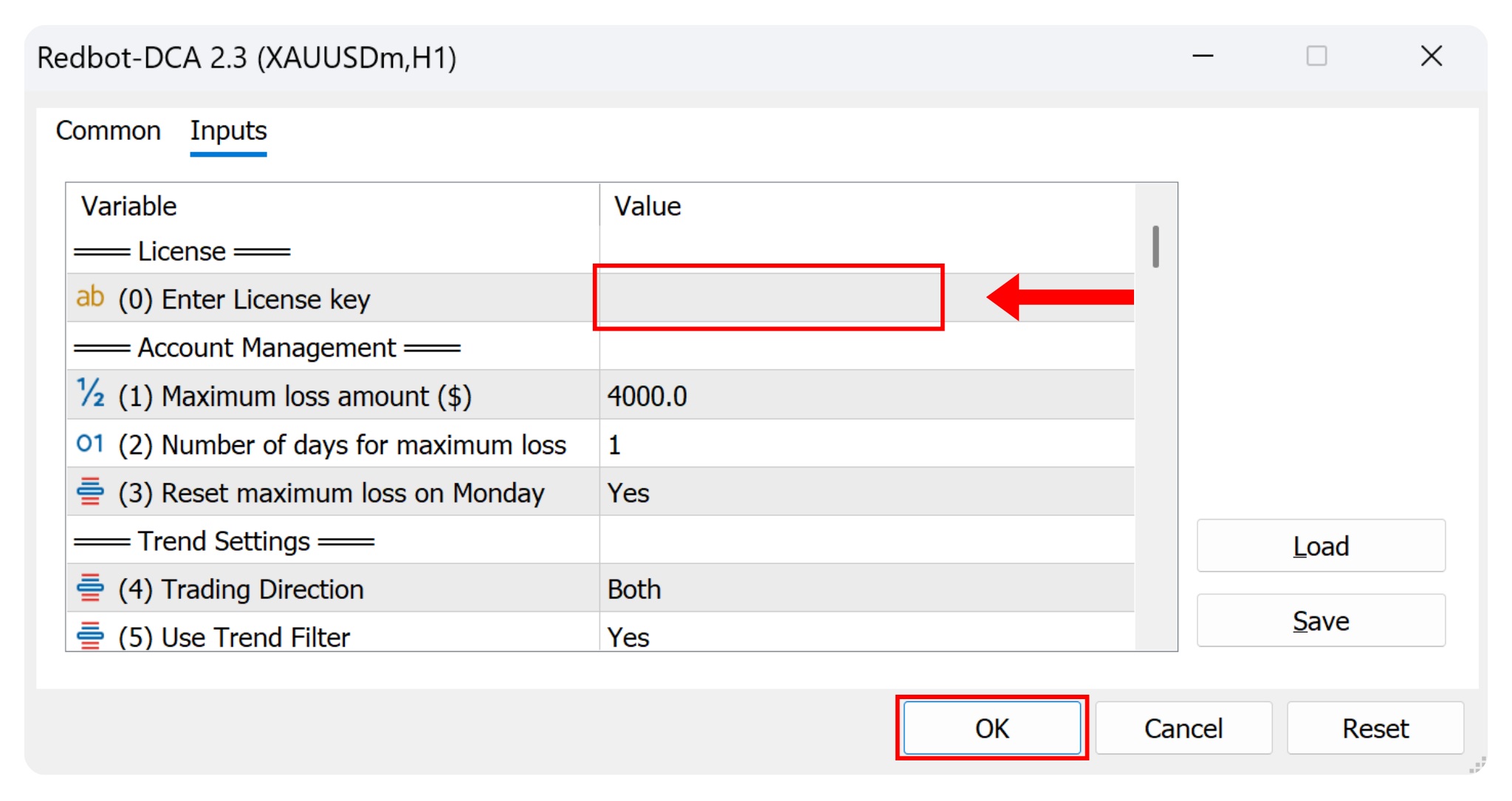
Go to the Inputs tab → Double-click and enter your License key (please visit the homepage to purchase a key) → then click OK to finish. Note: DEMO accounts do not require a key
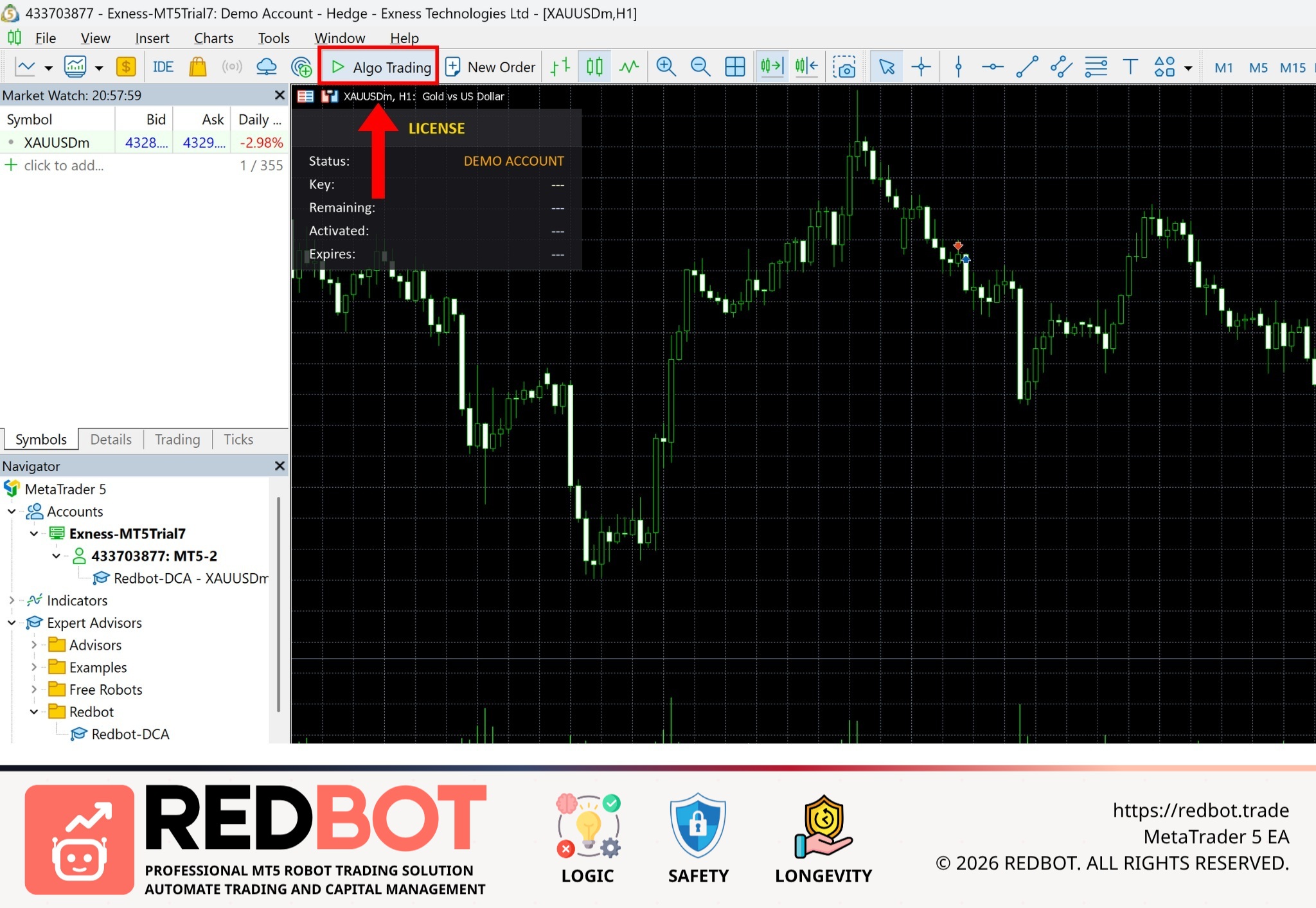
Click the Algo Trading button to start RedBot (the button status will turn green)
Share this insight with your trading network
If you found this article valuable, help us spread the knowledge by sharing it on your social channels.